30 Days of Posts in 5 Minutes
This is the headline promise of Krafon, and this tutorial walks you through it end to end: starting from an empty workspace, you'll produce roughly a month of on-brand, scheduled posts in a single sitting.
Goal: Connect an account, train Krafon on your brand, bulk-generate ~30 posts with AI, refine them, and get them on the calendar — all in one pass.
What you'll need
- A Krafon workspace (any plan; the Free plan supports 10 AI posts/month, Pro and above support more).
- One connected social account (Instagram, Facebook, LinkedIn, YouTube, or Threads).
- About 5–10 minutes of focused time.
Nothing in this tutorial goes live automatically. Krafon generates and schedules drafts; you review and approve every post. Publishing only happens at the scheduled time, after your sign-off.
Step 1 — Connect a social account
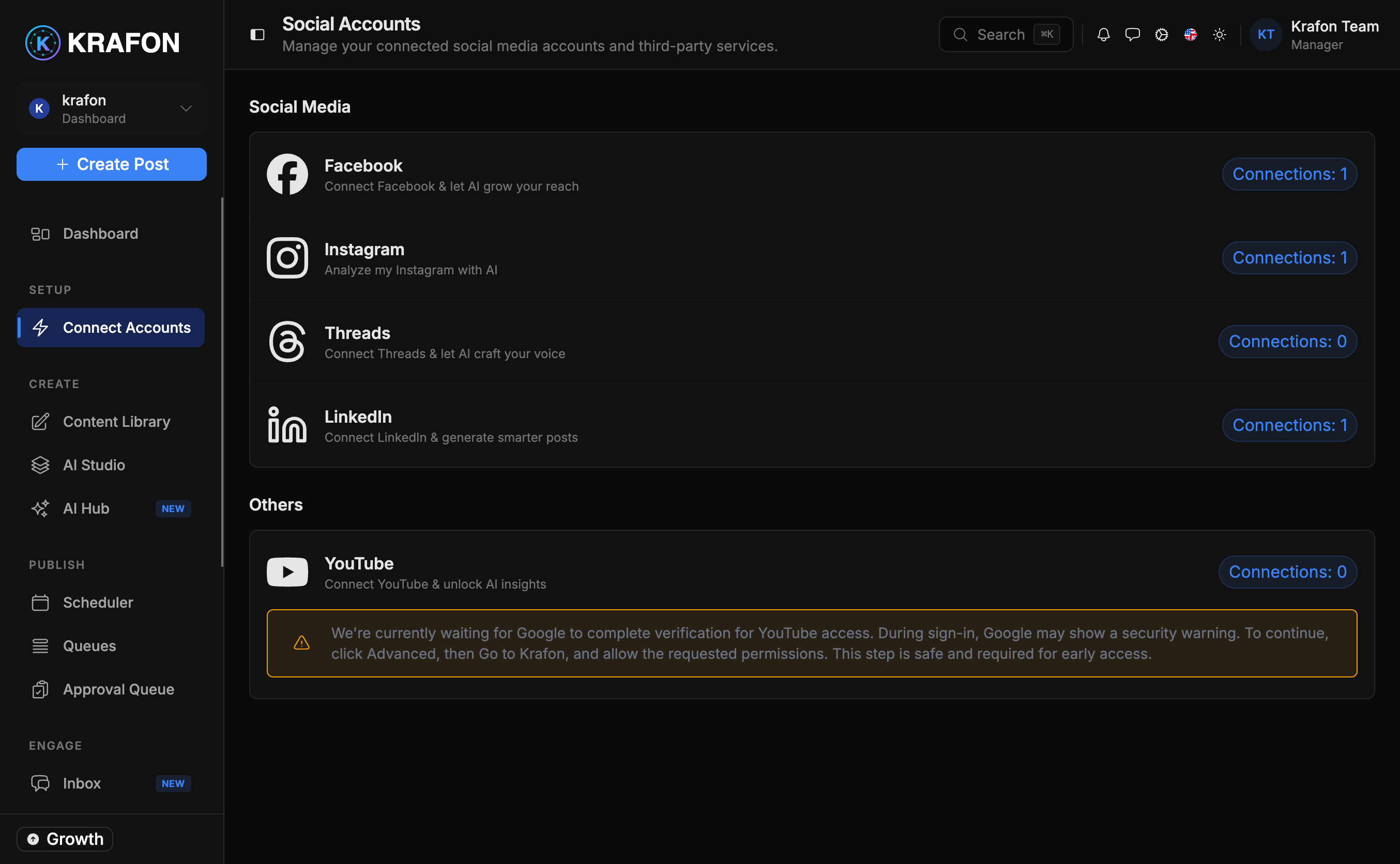
If you haven't already, link at least one social profile so Krafon knows where your posts will go.
- Go to Connect Accounts at
/<workspace>/accounts. - Choose your platform and complete the official login flow.
- Confirm the account shows as connected.
Full details, including permissions and reconnecting, are in Connecting Accounts.
Step 2 — Train your Brand Brain
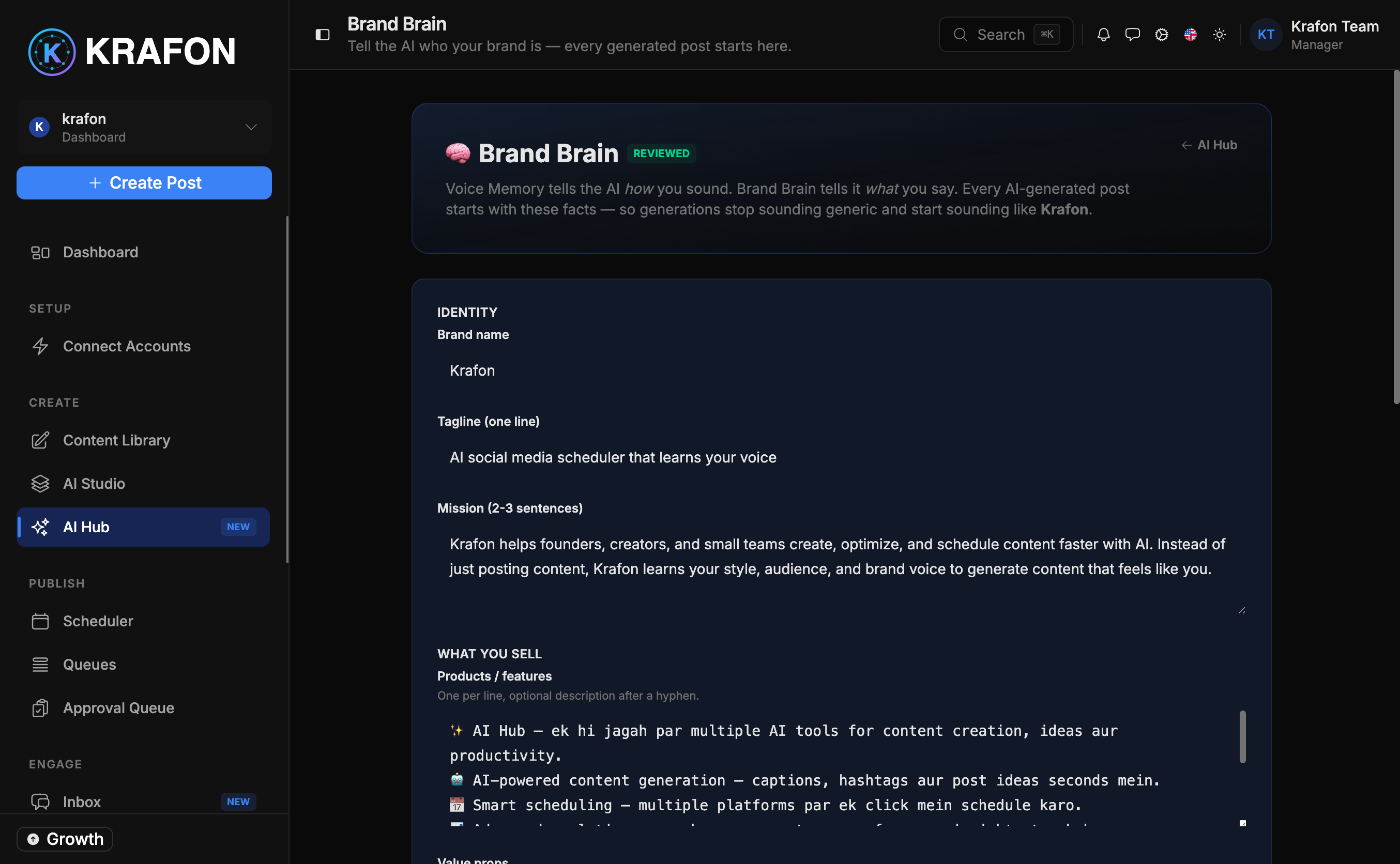
This is the most important step for quality. Brand Brain is the memory Krafon uses to write like you — your voice, audience, products, and do's and don'ts.
- Open Brand Brain at
/<workspace>/ai/brand-brain. - Describe your brand: who you are, what you offer, your audience, and your tone.
- Add specifics — phrases you love, words you avoid, links, and example posts.
If you skip or rush this step, the AI has nothing to work from and will produce bland, generic copy. Five extra minutes here is the single biggest lever on quality.
Learn what to feed it in Brand Brain.
Step 3 — Bulk-generate ~30 posts in AI Studio
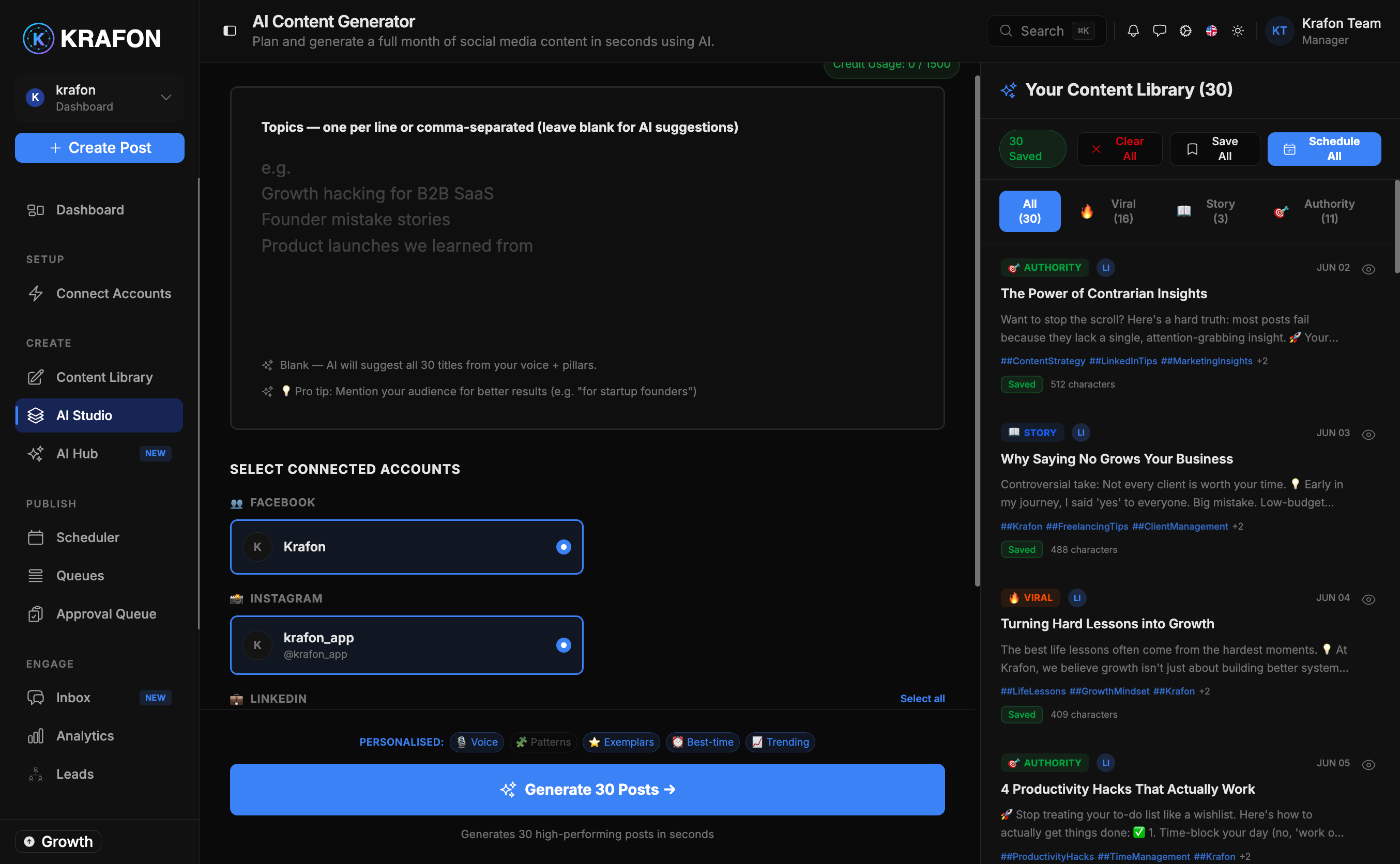
Now the fun part. AI Studio turns your Brand Brain into a batch of ready-to-edit drafts.
- Open AI Studio at
/<workspace>/aicontent. - Set the count to around 30 (a month of daily posts).
- Pick the platforms you want posts for.
- Choose a tone (or let Brand Brain drive it).
- Generate, and watch the drafts roll in.
Instead of 30 random posts, generate a few smaller batches around themes (tips, behind-the-scenes, promos). You'll get more variety and a more natural month.
See all the controls in AI Studio.
Step 4 — Review and refine your drafts
AI gives you a strong first draft; a quick human pass makes it great.
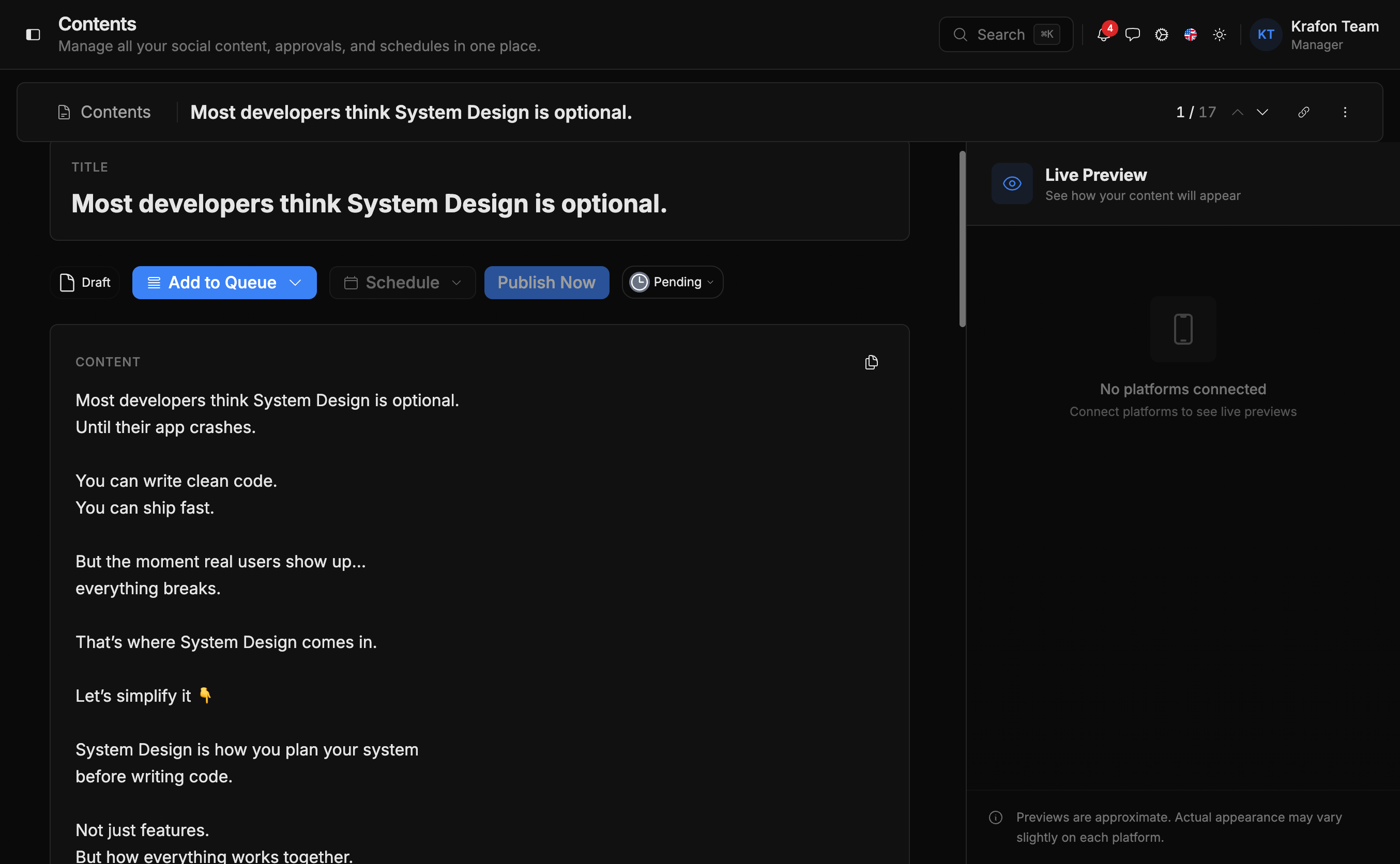
- Open your Content Library at
/<workspace>/libraryto see every generated draft. - Skim for accuracy, tone, and anything off-brand.
- Open any post in Content Studio at
/<workspace>/library/studioto fine-tune copy, swap media, and tweak per-platform versions.
Fix anything wrong or off-brand, then move on. The goal is a month of solid posts, not 30 perfect ones.
More in Content Library and Content Studio.
Step 5 — Schedule them across the month
With drafts ready, get them onto dates.
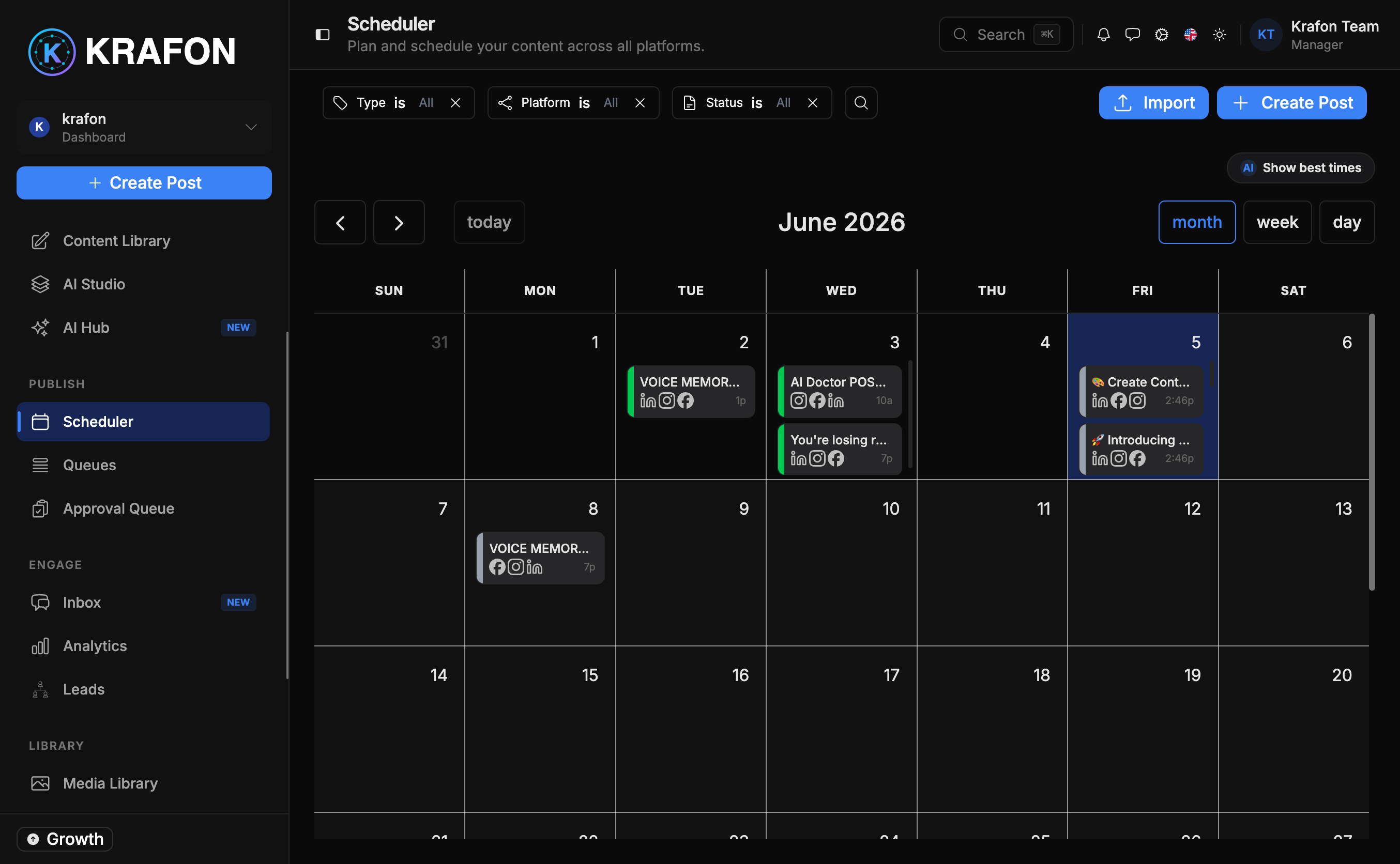
- Calendar: Open the Scheduler at
/<workspace>/schedulerand place posts on a calendar, or use Smart Best Time to auto-pick strong slots. See Scheduler. - Queues: Or drop posts into a Queue at
/<workspace>/queues— define posting times once, and the queue fills those slots in order. See Queues.
Use Queues for your steady daily cadence and the calendar for time-sensitive posts like launches or events.
Step 6 — (Optional) Turn on Autopilot
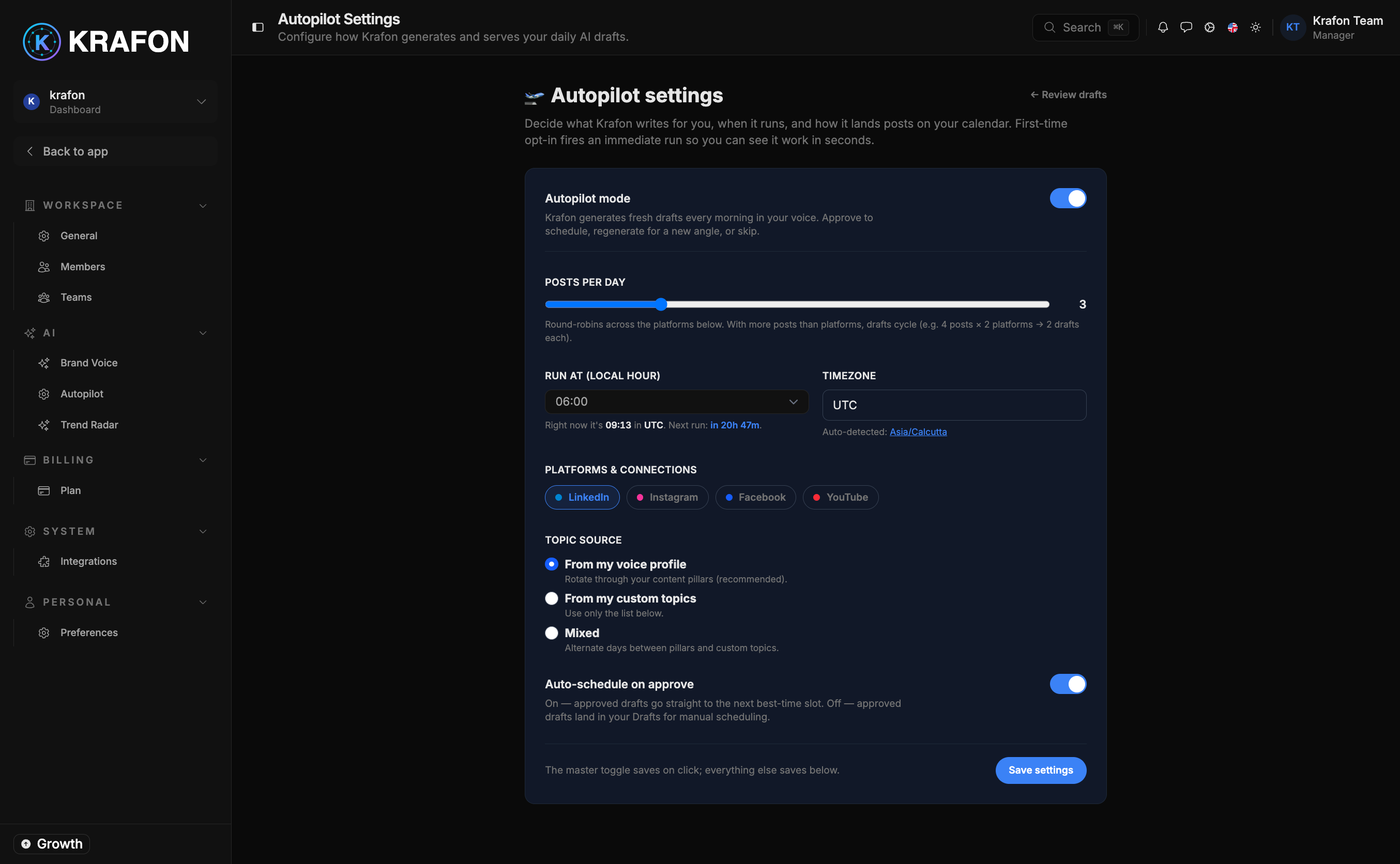
Want the pipeline to refill itself? Autopilot keeps generating and queuing on-brand drafts so you never run dry.
- Open Autopilot at
/<workspace>/ai/autopilot. - Set how often it generates and which Queues it feeds.
- Enable it — and remember, drafts still wait for your approval.
Details in Autopilot.
You're done
You went from an empty workspace to roughly 30 scheduled, on-brand posts — in about five minutes of real work. Each one waits for your approval before it ever publishes.
What's next
- Turn this into a repeatable habit with the Monthly Content Workflow.
- Sharpen your results with Best Practices.