Workspaces
A workspace is the home for everything you do in Krafon: your connected social accounts, your content, your team, and your plan. Every workspace is fully self-contained, so what happens in one never leaks into another.
When you sign up, you choose between two kinds of workspace:
- Personal — for solo creators managing your own accounts. The simplest place to start.
- Company — for brands and teams. Adds company-level details (company name, timezone, currency) and is built for collaborating with teammates.
You can change your mind later — see Converting a Personal workspace to a Company workspace below.
What each workspace contains
Every workspace has its own:
- Workspace code — a short code that appears in the URL. All authenticated pages live under that code, like
/<workspace>/...(for example,/<workspace>/usersor/<workspace>/settings/general). - Connected accounts — the Instagram, Facebook, LinkedIn, YouTube, and Threads profiles linked to this workspace only.
- Content — drafts, scheduled posts, and the publishing queue.
- Team — the members and roles who can access this workspace.
- Plan — billing and limits apply per workspace. See Plans & billing.
Because data is separated per workspace, connecting an account or inviting a teammate in one workspace has no effect on any other workspace you belong to.
Switching between workspaces
If you belong to more than one workspace, use the workspace dropdown in the sidebar — it shows the current workspace's icon and name.
- Click the workspace name at the top of the sidebar.
- The dropdown lists every workspace you belong to.
- Click any workspace to switch to it. Krafon reloads with that workspace's content and updates the workspace code in the URL.
From the same dropdown you can also create a new workspace.
The workspace code in the URL is a quick way to confirm which workspace you're working in before you publish anything.
Converting a Personal workspace to a Company workspace
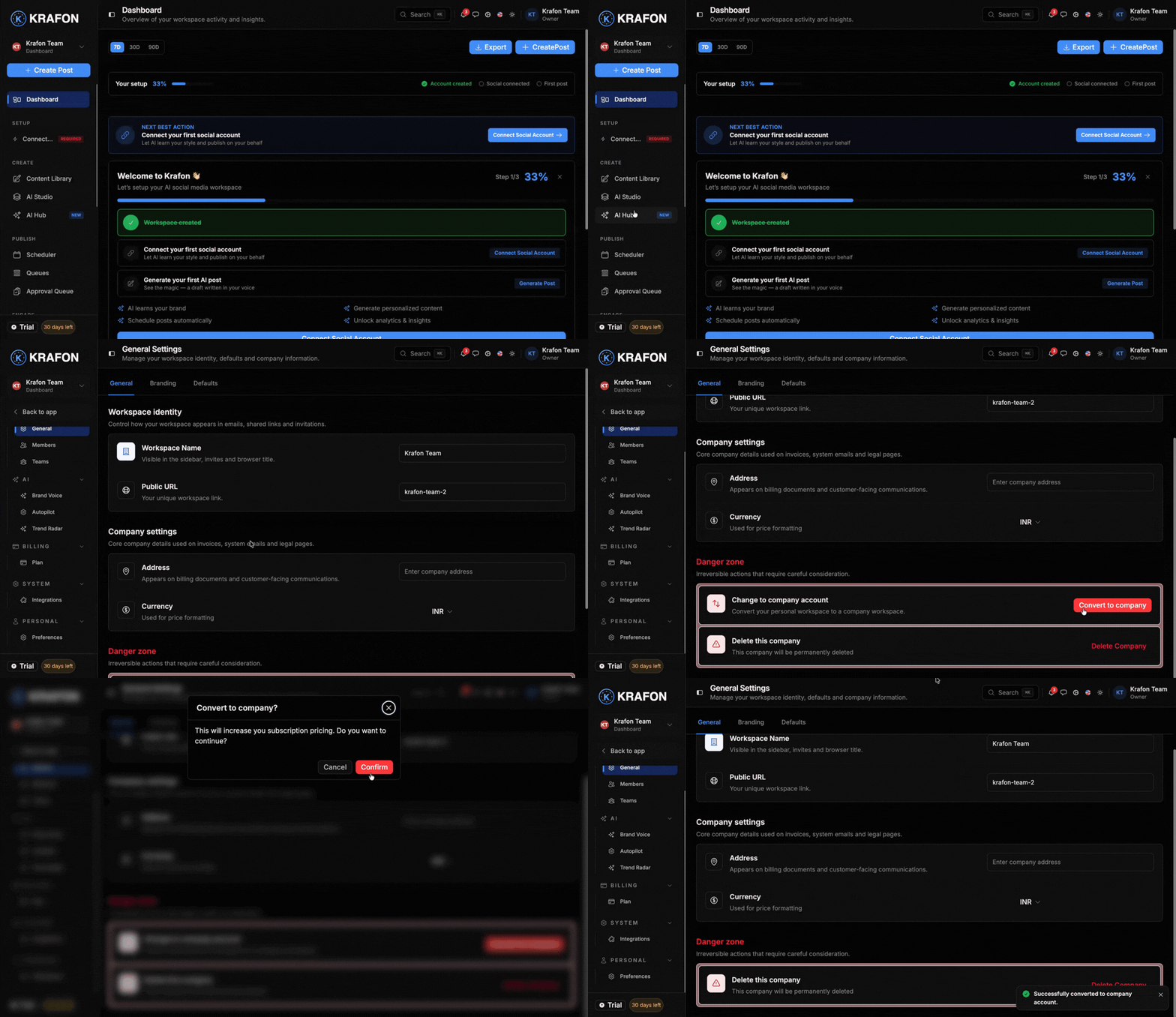
Start solo and growing into a team? You can convert your Personal workspace into a Company workspace without losing any content or connected accounts.
- Open the workspace dropdown and choose the option to convert (or go to Settings → General).
- Enter your company name.
- Set the workspace timezone.
- Set the currency.
- Save.
Your existing posts, connected accounts, and analytics all carry over. After converting, you can invite teammates and assign roles — see Team & roles.
Converting is one-directional: a Company workspace is the more capable type and isn't converted back to Personal.
Multiple workspaces
Running several brands or clients from one account? Multiple workspaces are available on the Growth and White Label plans. Free and Pro include a single workspace.
See Plans & billing to compare what each plan includes, and Team & roles to set up who can access each workspace.