Content Library
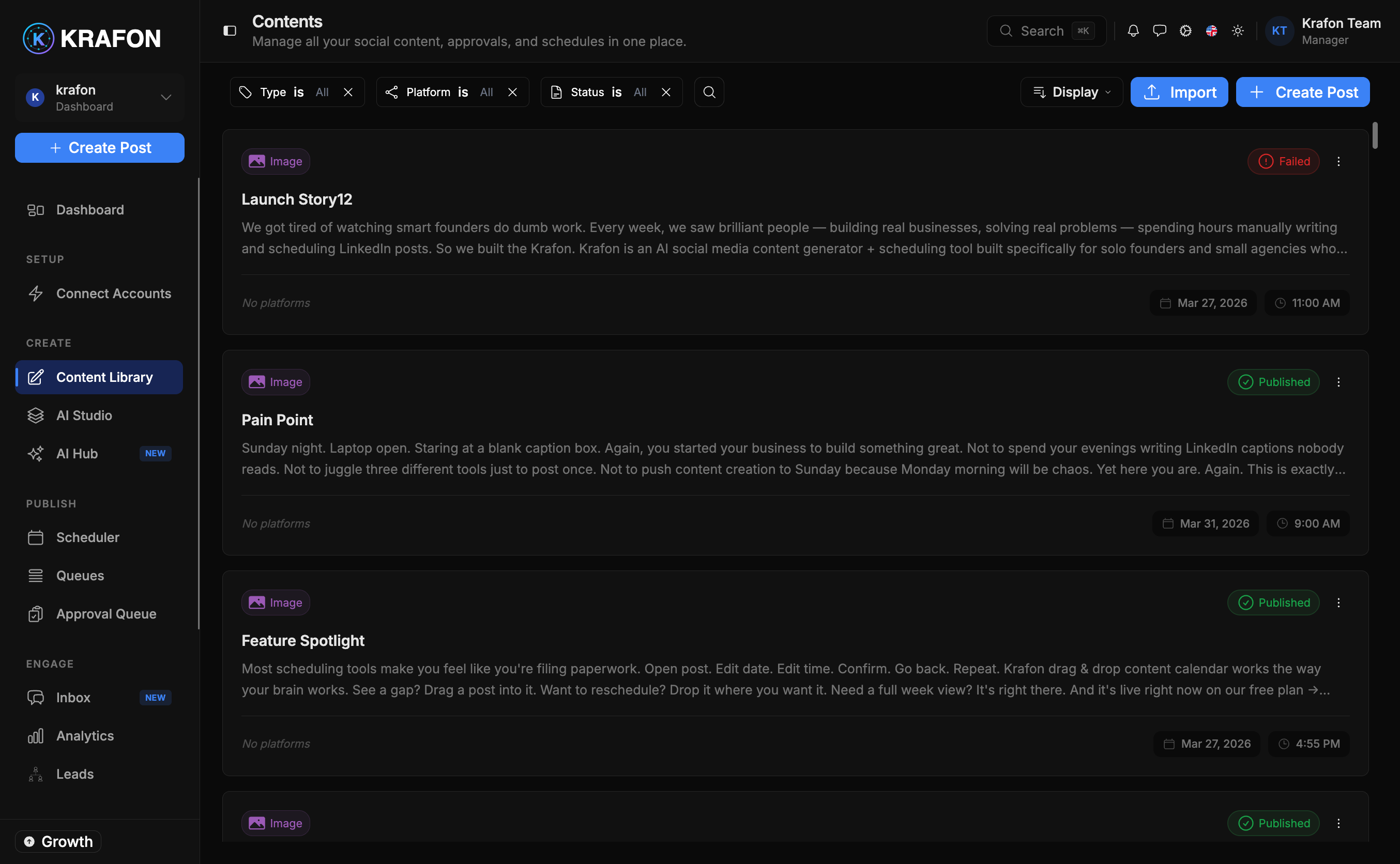
The Content Library at /<workspace>/library is where all of your content lives. Drafts, scheduled posts, queued posts, and already-published posts all sit in one place, so you never lose track of a piece of content.
Why use this?
- See everything in one list instead of hunting across platforms and tools.
- Filter and bulk-edit dozens of posts at once instead of opening them one by one.
- Recover anything you delete by mistake from the Recycle Bin.
How it works
- Open the Content Library. Select Library in the sidebar.
- Create a new post. Click New post to start a fresh draft — this opens Content Studio.
- Filter the list. Narrow by status (draft, scheduled, queued, published), platform, tags, or date range to find what you need.
- Open a post to edit. Clicking a post opens it in Content Studio.
- Run bulk actions. Select multiple posts to delete, reschedule, or move to queue in one step.
- Duplicate a post. Use Duplicate to reuse a post as the starting point for a new one.
- View activity. Open a post's activity log to see its history of edits, status changes, and approvals.
Per-post fields
Every post in the Library carries:
- Caption text — the written copy.
- Media uploads — attached images or videos.
- Platform multi-select — which connected platforms it targets.
- Schedule date/time — when it will publish.
- Queue assignment — the queue it belongs to, if any.
- Tags — labels for filtering and bulk actions.
Example workflow
You've generated a batch of drafts and want to clean them up. You open the Library, filter by status: draft and platform: Instagram, and select five posts that belong to the same campaign. You apply a bulk reschedule to spread them across next week, tag them all, and send the rest to your Approval Queue for a teammate to review.
Approvals
If your workspace uses manager-level review, posts can require sign-off before they publish. Posts awaiting review flow through the Approval Queue, where a Manager, Admin, or Owner approves or sends them back.
Deleting a post is a soft delete — it moves to the Recycle Bin rather than disappearing forever.
Save filter combinations you use often (for example, scheduled + LinkedIn + this month) as your go-to view for quick weekly planning.
Common issues
Problem: I deleted a post and need it back. Solution: Deleted posts go to the Recycle Bin, where you can restore them. Find the Recycle Bin in Settings.
Problem: A bulk reschedule didn't apply to one of the selected posts. Solution: Published posts can't be rescheduled. Bulk reschedule only affects drafts, scheduled, and queued items — deselect anything already published.
Problem: I can't find a post I know exists. Solution: A filter may be hiding it. Clear all filters (status, platform, tags, date range) and search again.
FAQ
What's the difference between scheduled and queued? A scheduled post has a fixed date and time. A queued post fills the next open slot in a Queue automatically.
Does duplicating a post copy its schedule? A duplicate starts as a fresh draft so you can give it a new time and any changes before publishing.