Queues
Overview
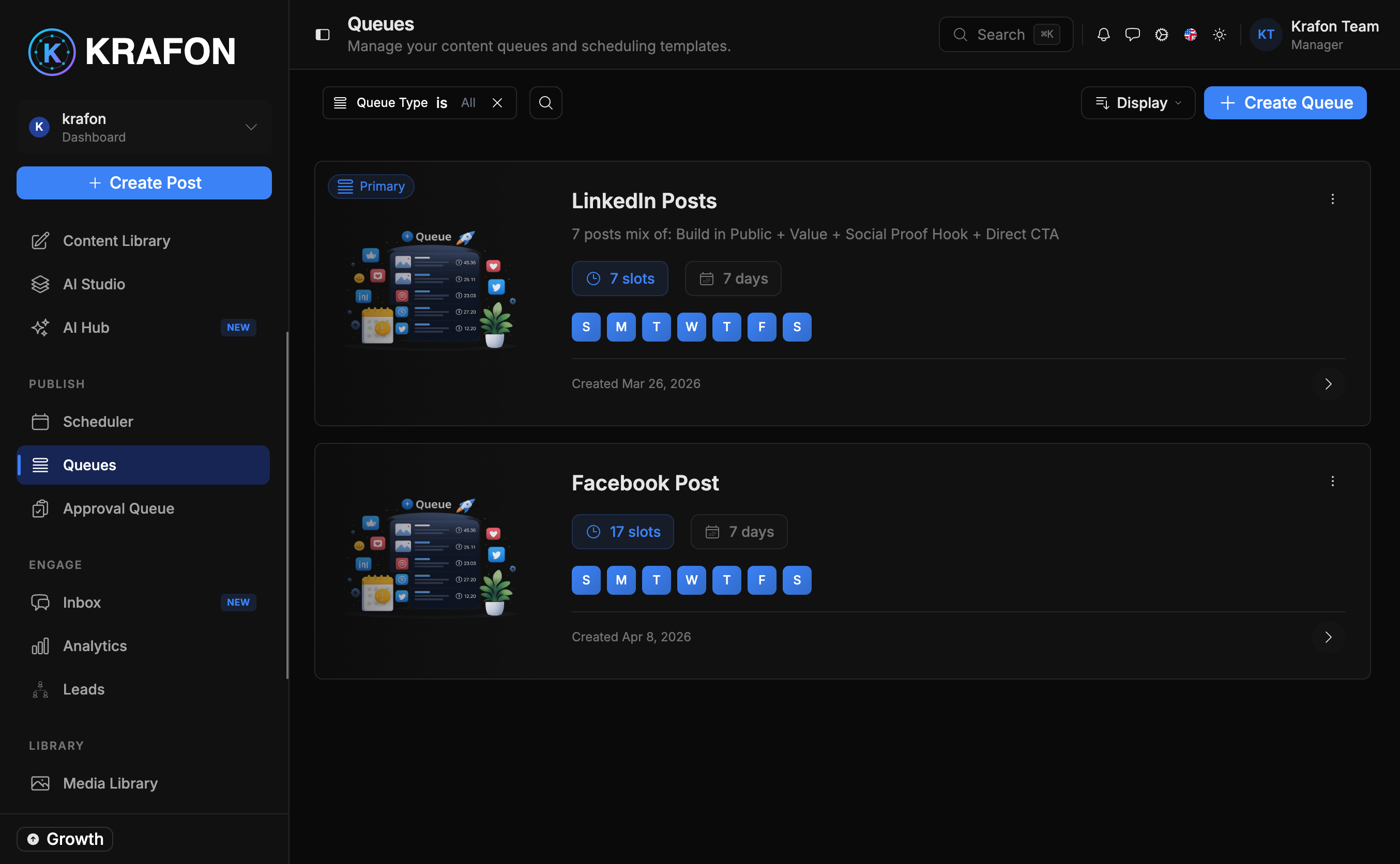
Queues keep you posting on a steady rhythm without picking an exact date for every post. You define a cadence (for example, daily at 9:00 AM), fill the queue's slots with content, and Krafon publishes them on schedule automatically.
Manage queues at /<workspace>/queues and build a new one at /<workspace>/queues/create.
If you'd rather place posts on specific dates and times, use the calendar in the Scheduler instead.
Why use this?
- Effortless consistency. Set the cadence once and keep a steady stream of posts going.
- No date-picking. Add content to slots and Krafon handles the timing.
- Set and forget rhythm. Great for evergreen content you want flowing on a regular beat.
- Multiple cadences. Run different queues for different platforms or content types.
How it works
- Open Queues at
/<workspace>/queues, then click Create to go to/<workspace>/queues/create. - Set up the queue:
- Name — a label so you can tell queues apart.
- Posting schedule / frequency — the cadence (e.g. daily at 9:00 AM, or three times a week).
- Platforms — which connected platforms this queue posts to.
- Number of slots — how many posts the queue holds.
- Assign content to slots. Fill each slot with a post.
- Krafon publishes the slots in order, on your chosen cadence.
- Return any time to edit the queue, view status, reorder content, or delete the queue.
Manage a queue
| Action | What it does |
|---|---|
| Create | Define name, schedule, platforms, and slot count. |
| Assign content | Fill slots with the posts to publish. |
| Edit | Change cadence, platforms, slots, or the content inside. |
| View status | See which slots are filled, queued, or published. |
| Delete | Remove the queue and stop its cadence. |
Keep a few extra slots filled ahead of time. A queue with empty upcoming slots has nothing to publish, breaking your rhythm.
Example workflow
- You create a queue named "Daily Tips," set the frequency to daily at 9:00 AM, choose LinkedIn, and give it 10 slots.
- You assign 10 evergreen tips to the slots.
- Krafon publishes one tip each morning at 9:00 AM, in order.
- After a week, you open the queue, check its status, and top it up with five more tips so the cadence never stops.
Tips and notes
Queues post on a cadence, not on fixed calendar dates. Use the Scheduler when you need a post to go out on a specific day and time.
Per-day publishing is still bound by your plan's limits. A high-frequency queue across many platforms can hit those limits — check your plan if posts aren't going out.
Common issues
Problem: The queue stopped posting. Solution: It probably ran out of filled slots. Open the queue, check its status, and assign more content.
Problem: A queued post failed to publish. Solution: Confirm the queue's platform is still connected under Settings → Integrations, and that you haven't hit your plan's per-day limit.
Problem: You need a one-off post on a specific date. Solution: Queues aren't built for that. Schedule it on the calendar in the Scheduler.
FAQ
How is a queue different from the Scheduler? A queue publishes on a repeating cadence and fills dates for you. The Scheduler is a calendar where you place posts on exact dates and times.
What happens when all slots are published? The queue waits for new content. Add posts to the slots to resume the cadence.
Can I run more than one queue? Yes. Create separate queues for different platforms, cadences, or content themes.