Connecting your accounts
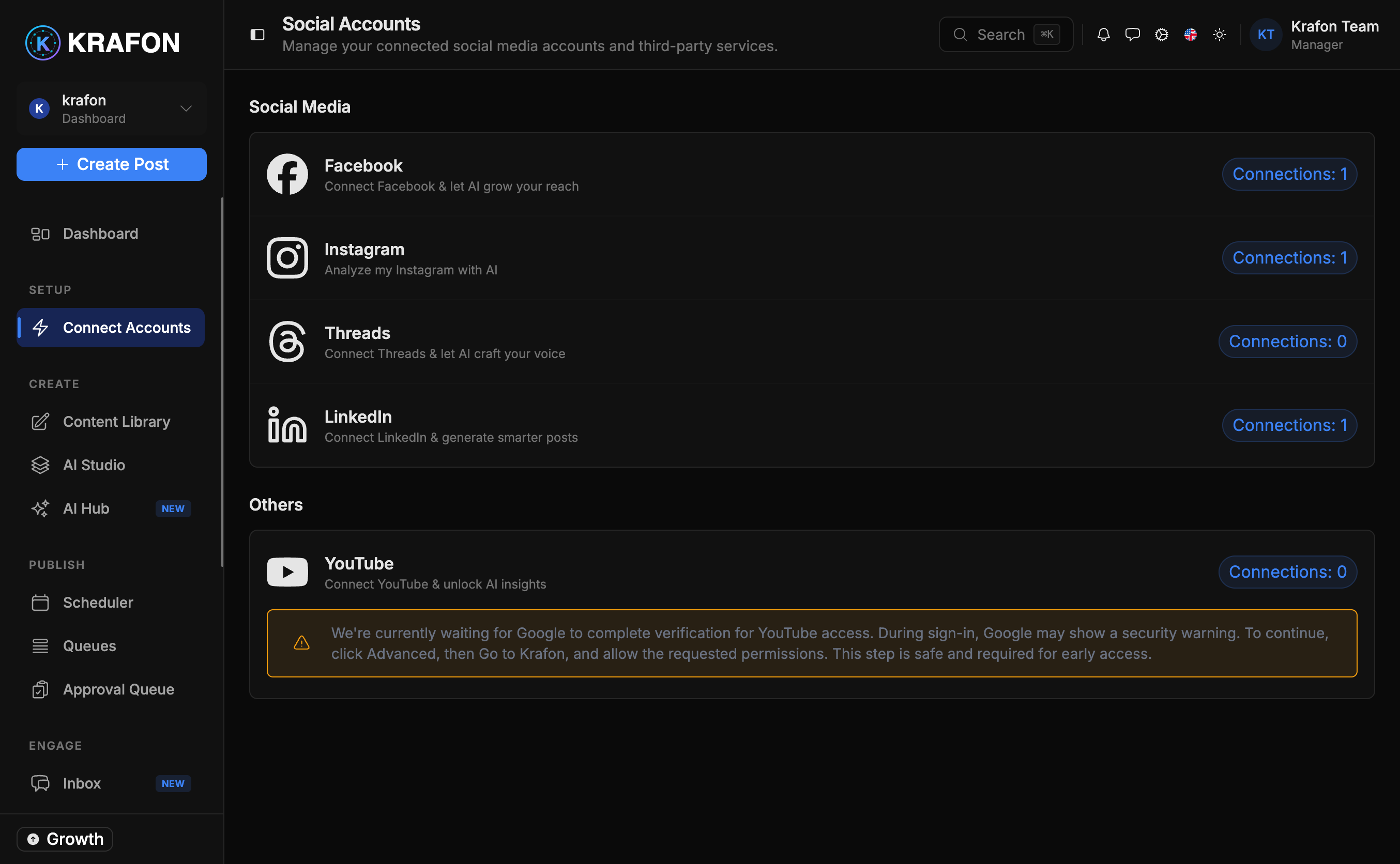
Before Krafon can write, schedule, or analyze anything, it needs to connect to your social profiles. You do this on the Connect Accounts page at /<workspace>/accounts.
You can also reach it from the sidebar item Connect Accounts, which stays marked "Required" until your first account is connected.
AI generation, scheduling, the unified inbox, and analytics won't work until you connect at least one account. This is the one step you can't skip.
The connect flow
Connecting uses OAuth, the secure standard sign-in flow each platform provides. You never give Krafon your password.
- Click Connect [Platform] (for example, Connect Instagram).
- You're redirected to the platform to sign in and grant permissions.
- The platform sends you back, and Krafon stores the connection securely.
- You return to the Connect Accounts page with a confirmation that the account is linked.
Repeat for each platform you want to manage. The number of profiles you can connect depends on your plan.
Connection health & disconnecting
Each connected account shows its connection health so you know it's working. If a platform's permission expires or is revoked, Krafon flags it here so you can reconnect.
You can disconnect any account anytime from this page. Disconnecting stops Krafon from posting to or reading from that account.
Krafon connects through each platform's official API and is a Meta Verified Tech Provider. Your posts always require your approval before they publish.
Platform specifics & troubleshooting
Each platform has its own requirements (for example, business vs. personal accounts, or which page types are supported).
- For per-platform setup details, see Integrations overview.
- If a connection fails or an account shows as unhealthy, see Troubleshooting.
What's next
With an account connected, you're ready to create. Continue to First steps.