Scheduler
Overview
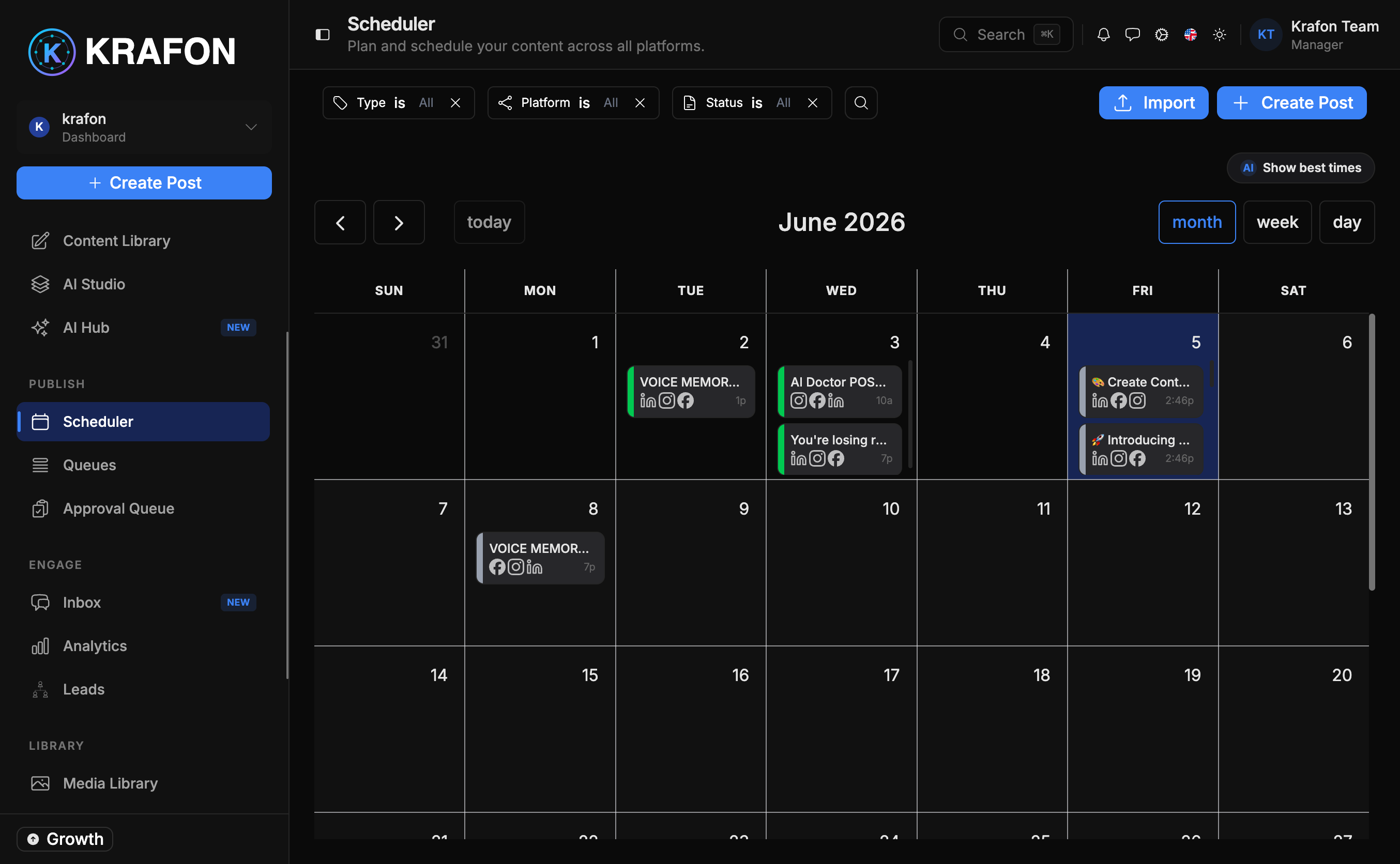
The Scheduler is a visual monthly calendar where you plan and schedule everything you post. See your whole month at a glance, drag posts to new dates, and let Krafon publish them at the right time. Open it at /<workspace>/scheduler.
Use the Scheduler when you want full control over exact dates and times. For automated, fixed-cadence posting, use Queues instead.
Why use this?
- See the big picture. A monthly view shows your posting rhythm and any gaps.
- Reschedule effortlessly. Drag-and-drop a post to a new day instead of editing fields.
- Know status at a glance. Color-coded posts show what's scheduled, published, or needs attention.
- Post at the right moment. Timezone-aware scheduling and best-time suggestions help you reach your audience.
How it works
- Open Scheduler at
/<workspace>/scheduler. - Pick a day and add a post, or send drafts here from AI Studio, Autopilot, or your Content Library.
- Choose the platform-specific slot for each post (Instagram, Facebook, LinkedIn, YouTube, or Threads).
- Set the time — scheduling is timezone-aware, and Krafon offers best-time suggestions based on when your audience engages.
- Drag-and-drop any post to reschedule it to a different day.
- Click a post for a quick view to check or tweak its details.
- Use bulk reschedule to move several posts at once.
At a glance
| Feature | What it does |
|---|---|
| Drag-and-drop | Move a post to a new day by dragging it. |
| Color-coded status | Instantly see scheduled, published, or attention-needed posts. |
| Platform-specific slots | Schedule per platform in dedicated slots. |
| Quick view | Click a post to preview and edit it without leaving the calendar. |
| Bulk reschedule | Move multiple posts at once. |
| Timezone-aware | Times respect your workspace timezone. |
| Best-time suggestions | Recommended send times for better engagement. |
Best-time suggestions come from Krafon's Smart Best Time layer. Learn more in the AI Hub.
Per-day post limits depend on your plan. Higher plans allow more profiles and more scheduled posts. See your plan's limits before packing a single day.
Example workflow
- On Monday you open the Scheduler and see three empty days this week.
- You pull two approved Autopilot drafts and one Content Library post onto Tuesday, Thursday, and Friday.
- For each, you accept Krafon's best-time suggestion.
- Later, a holiday comes up, so you drag Friday's post to the following Monday and bulk reschedule the rest of the week back a day.
Tips and notes
Use the color-coded statuses as a quick health check. If you spot an "attention-needed" color, click it to fix the issue before it misses its slot.
Want a steady cadence without choosing each date? Set up a Queue and let it fill the calendar automatically.
If you hit your plan's per-day limit, new posts for that day won't schedule. Move some to another day or upgrade your plan.
Common issues
Problem: A post won't schedule on a given day. Solution: You may have reached your plan's per-day post limit. Spread posts across more days or upgrade.
Problem: A scheduled post didn't publish. Solution: Check its status color and quick view. A broken platform connection is the usual cause — reconnect under Settings → Integrations.
Problem: Times look an hour off. Solution: Scheduling is timezone-aware. Confirm your workspace timezone is set correctly so suggestions and slots line up.
FAQ
What's the difference between the Scheduler and Queues? The Scheduler is a calendar for exact dates and times. Queues publish on a fixed cadence without you choosing each date.
Where do best-time suggestions come from? From Krafon's Smart Best Time intelligence — see the AI Hub.
Can I move many posts at once? Yes. Use bulk reschedule to shift multiple posts together.