Trend Radar
Overview
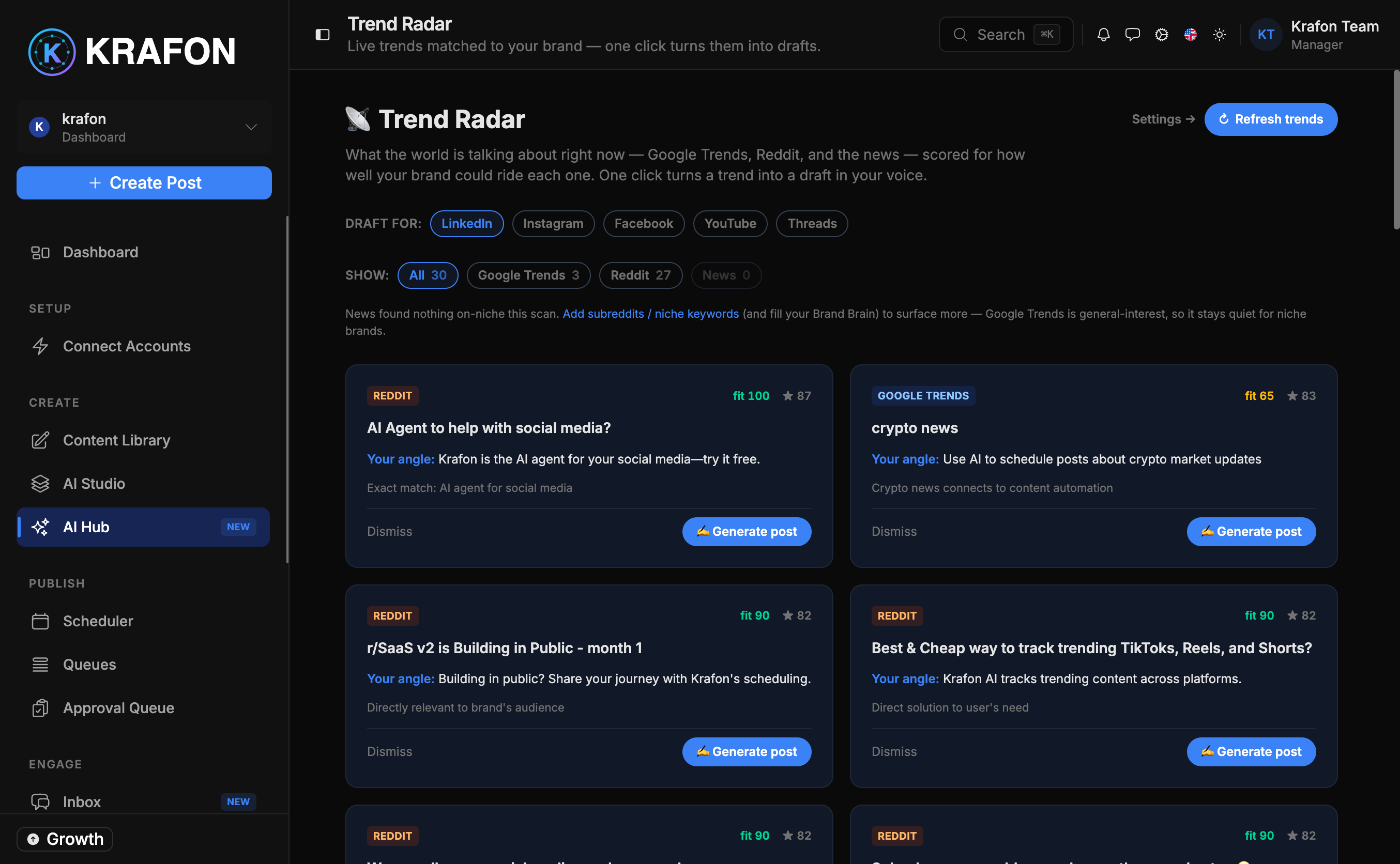
Trend Radar surfaces what's trending right now and matches it to your niche, so you can ride a wave of attention while it's still rising. AI scores each trend's relevance to your brand, and you can turn any trend into a draft with a single click.
Browse trends at /<workspace>/ai/trend-radar, and tune what it watches at /<workspace>/settings/trend-radar.
Why use this?
- Stay timely. Catch trends while they're still climbing instead of after they peak.
- Only relevant trends. Each trend gets an AI relevance score for your brand, so you skip the noise.
- Idea to draft in one click. Turn a trend into an on-brand draft instantly — no blank page.
- Always-on monitoring. Trend Radar keeps watching so you don't have to.
How it works
- Make sure your Brand Brain is trained — Trend Radar uses it to judge relevance and write on-brand drafts.
- Open Trend Radar at
/<workspace>/ai/trend-radar. - Browse the list of live trends. Each shows an AI relevance score for your brand.
- Click a trend to see details and why it matched your niche.
- Click to turn the trend into a draft. Krafon writes an on-brand post about it.
- From there, save it to your Content Library or send it on to be scheduled.
Settings
| Setting | What it controls |
|---|---|
| Trend sources | Which sources Krafon pulls trends from. |
| Niche strictness | How tightly trends must match your niche to appear. |
| Check frequency | How often Trend Radar scans for new trends. |
| Notifications | Whether you're alerted when a strong, relevant trend appears. |
Trend Radar requires a trained Brand Brain. Relevance scoring and on-brand drafts depend on knowing your niche, audience, and voice.
Example workflow
- Your niche is "home barista gear." You set niche strictness to high and turn on notifications.
- Trend Radar flags a trending topic about a new espresso technique with a high relevance score.
- You click into it, then turn it into a draft. Krafon writes an on-brand post tying the trend to your products.
- You save the draft to your Content Library and schedule it for tomorrow morning.
Tips and notes
Act fast on high-scoring trends. The earlier you post, the more reach a rising trend tends to give you.
If you're seeing too many off-topic trends, raise niche strictness. If you're seeing too few, lower it.
A high relevance score is a strong signal, but always skim the generated draft before scheduling — you know your audience best.
Common issues
Problem: No trends show up. Solution: Confirm your Brand Brain is trained and your trend sources are enabled. Lower niche strictness if it's filtering everything out.
Problem: Trends feel irrelevant to your brand. Solution: Improve your niche and audience details in your Brand Brain, then raise niche strictness in settings.
Problem: You're not getting notified about good trends. Solution: Enable notifications in Settings → Trend Radar and check your check frequency isn't set too infrequently.
FAQ
What does the relevance score mean? It's the AI's estimate of how well a trend fits your brand, based on your Brand Brain. Higher means a closer match.
Does turning a trend into a draft publish it? No. It creates a draft you can edit, save to your Content Library, and schedule.
How current are the trends? Trend Radar scans on the check frequency you set, so more frequent checks surface trends sooner.