AI Hub
Overview
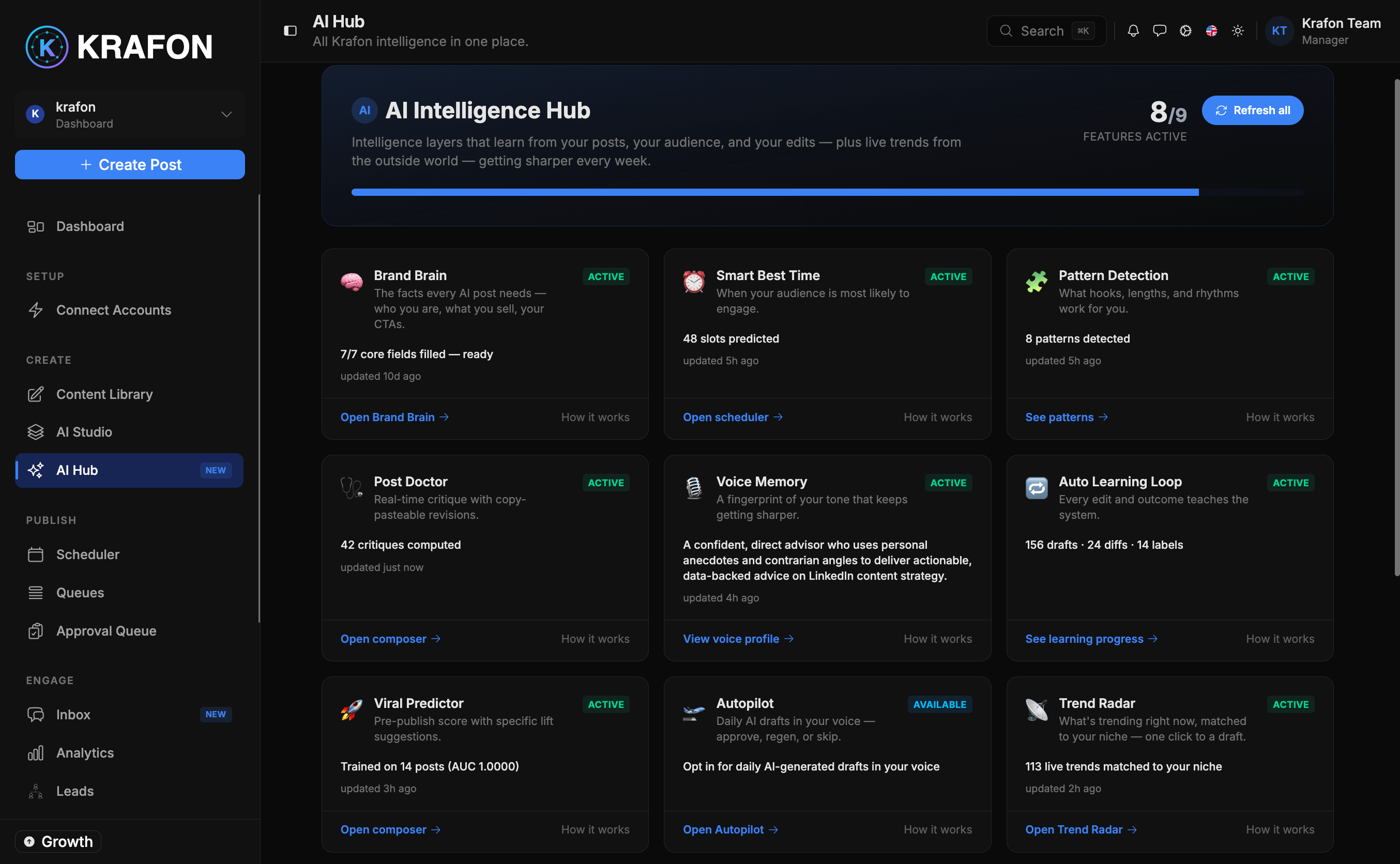
The AI Hub is the central home for everything Krafon's AI does for you. From one screen at /<workspace>/ai, you can see which intelligence layers are active, understand what each one contributes, refresh the AI's overnight analysis on demand, and jump into any of the dedicated AI tools.
Think of it as the dashboard for the "brain" behind your content. Each layer learns from your brand, your audience, and your results, then feeds the others so your posts get smarter over time.
Why use this?
- One place to check AI health. A status indicator at the top shows how many layers are active (for example, 7/9 active) so you instantly know whether anything still needs setup.
- Manual control over the AI pipeline. A Refresh button lets you trigger the nightly AI pipeline right away instead of waiting for the overnight run.
- Fast navigation. Reach Brand Brain, Autopilot, Trend Radar, and the rest without hunting through menus.
- Understand the system. See plainly what each layer does and which ones still depend on a trained Brand Brain or a connected account.
How it works
- Open AI from your workspace sidebar to land at
/<workspace>/ai. - Check the active count (e.g. "7/9 active") near the top. This tells you how many of the nine intelligence layers are currently switched on and ready.
- Review each layer's card to see its status and a short description of what it does.
- Click any layer to open its dedicated screen or settings.
- To re-run the AI's analysis immediately, click Refresh. This manually triggers the same nightly AI pipeline that normally runs in the background, so new edits, posts, and outcomes are reflected right away.
The pipeline runs automatically every night. Use Refresh when you've just trained your Brand Brain, imported posts, or made big changes and don't want to wait until tomorrow.
The nine intelligence layers
| Layer | What it does |
|---|---|
| Brand Brain | The facts every AI post needs: who you are, what you sell, and your CTAs. The foundation the other layers build on. |
| Smart Best Time | Sends posts out when your audience is most likely to engage. |
| Pattern Detection | Learns which hooks, lengths, and rhythms work for you. |
| Post Doctor | Real-time critique of a draft with copy-pasteable revisions. |
| Voice Memory | A fingerprint of your tone that keeps getting sharper. |
| Auto Learning Loop | Every edit and outcome teaches the system. |
| Viral Predictor | A pre-publish score with specific suggestions to lift performance. |
| Autopilot | Daily AI drafts in your voice — approve, regenerate, or skip. |
| Trend Radar | What's trending now, matched to your niche, one click to a draft. |
Many layers depend on a trained Brand Brain and at least one connected account. Until those are in place, some layers will show as inactive and won't count toward your active total.
Imported Posts
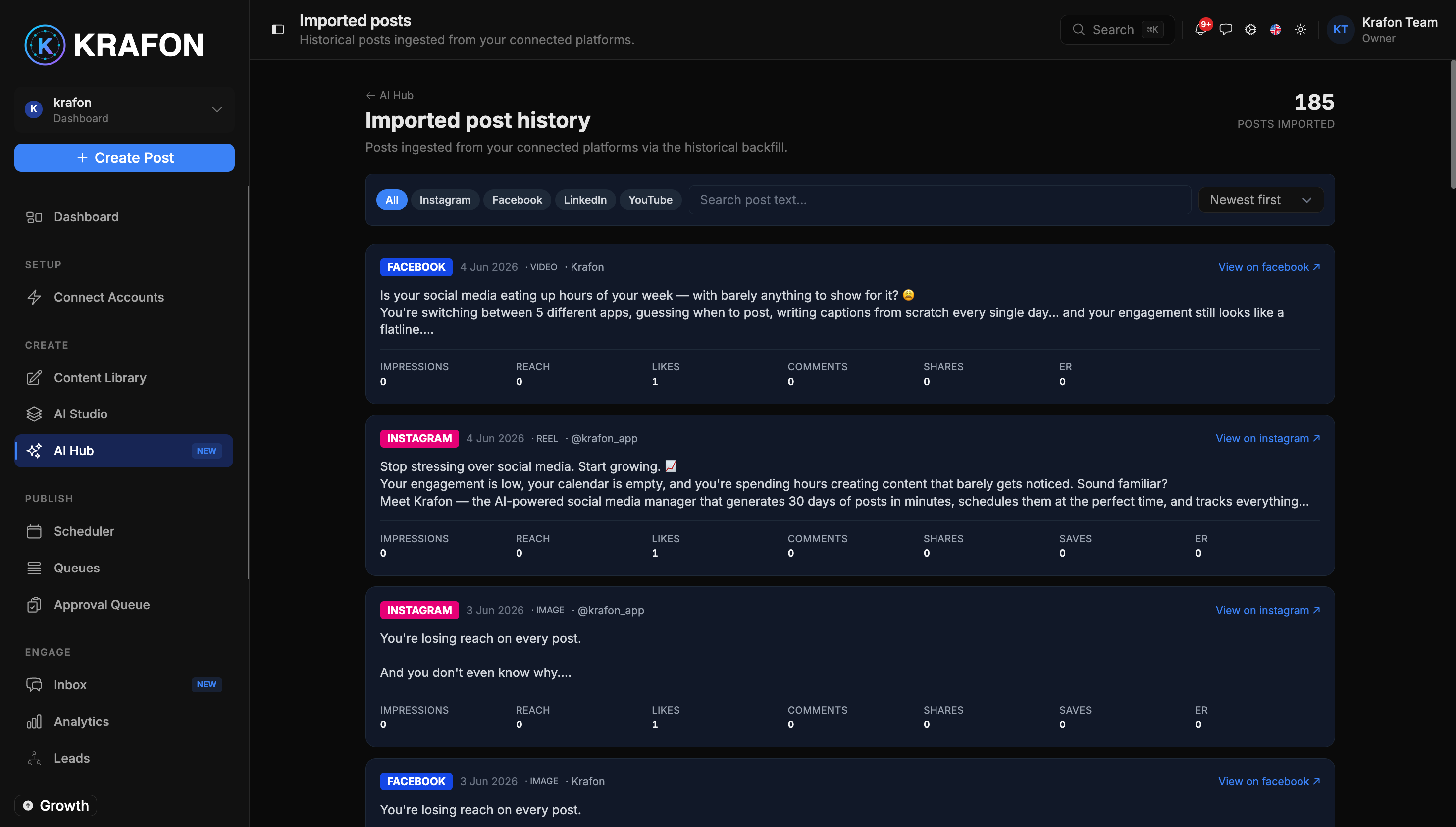
Krafon can backfill your historical posts from connected platforms so the AI learns from work you've already published. View them at /<workspace>/ai/imported.
- These imported posts feed layers like Pattern Detection, Voice Memory, and Smart Best Time, giving the AI real examples of your voice and results from day one.
- Manage which accounts get imported via Settings → Integrations.
Example workflow
- You connect your Instagram account and train your Brand Brain.
- You open the AI Hub and see the status jump from "2/9 active" to "6/9 active."
- You click Refresh so the AI analyzes your newly imported posts immediately.
- You open Autopilot to review tonight's drafts and check Trend Radar for a timely topic.
- Over the next weeks, Pattern Detection and Voice Memory sharpen, and more layers light up.
Tips and notes
Aim to get as many layers active as possible. The more layers that are on, the better every AI suggestion becomes, because they share what they learn.
After importing posts or editing your Brand Brain, hit Refresh instead of waiting overnight — your AI features will reflect the changes in minutes.
Disconnecting a platform account can deactivate layers that rely on its data, such as Smart Best Time. Reconnect to restore them.
Common issues
Problem: The hub shows a low active count even though you've used Krafon for a while. Solution: Open your Brand Brain and confirm it's fully trained, then check Settings → Integrations to make sure at least one account is connected. Click Refresh afterward.
Problem: A layer stays inactive after setup.
Solution: That layer likely needs data it doesn't have yet — for example, Pattern Detection needs published or imported posts to learn from. Import historical posts at /<workspace>/ai/imported and refresh.
Problem: Clicking Refresh doesn't seem to change anything. Solution: The pipeline can take a few minutes to finish. Give it time, then reload the page. If layers still look stale, confirm your account connection is healthy in Settings → Integrations.
FAQ
How often does the AI pipeline run on its own? Automatically every night. The Refresh button runs that same pipeline on demand.
Do I need every layer active to get value? No. Even a few active layers improve your drafts, but a trained Brand Brain and a connected account unlock the most.
Where do imported posts come from?
From the platforms you've connected. Manage them under Settings → Integrations, and view the results at /<workspace>/ai/imported.