Approval Queue
Overview
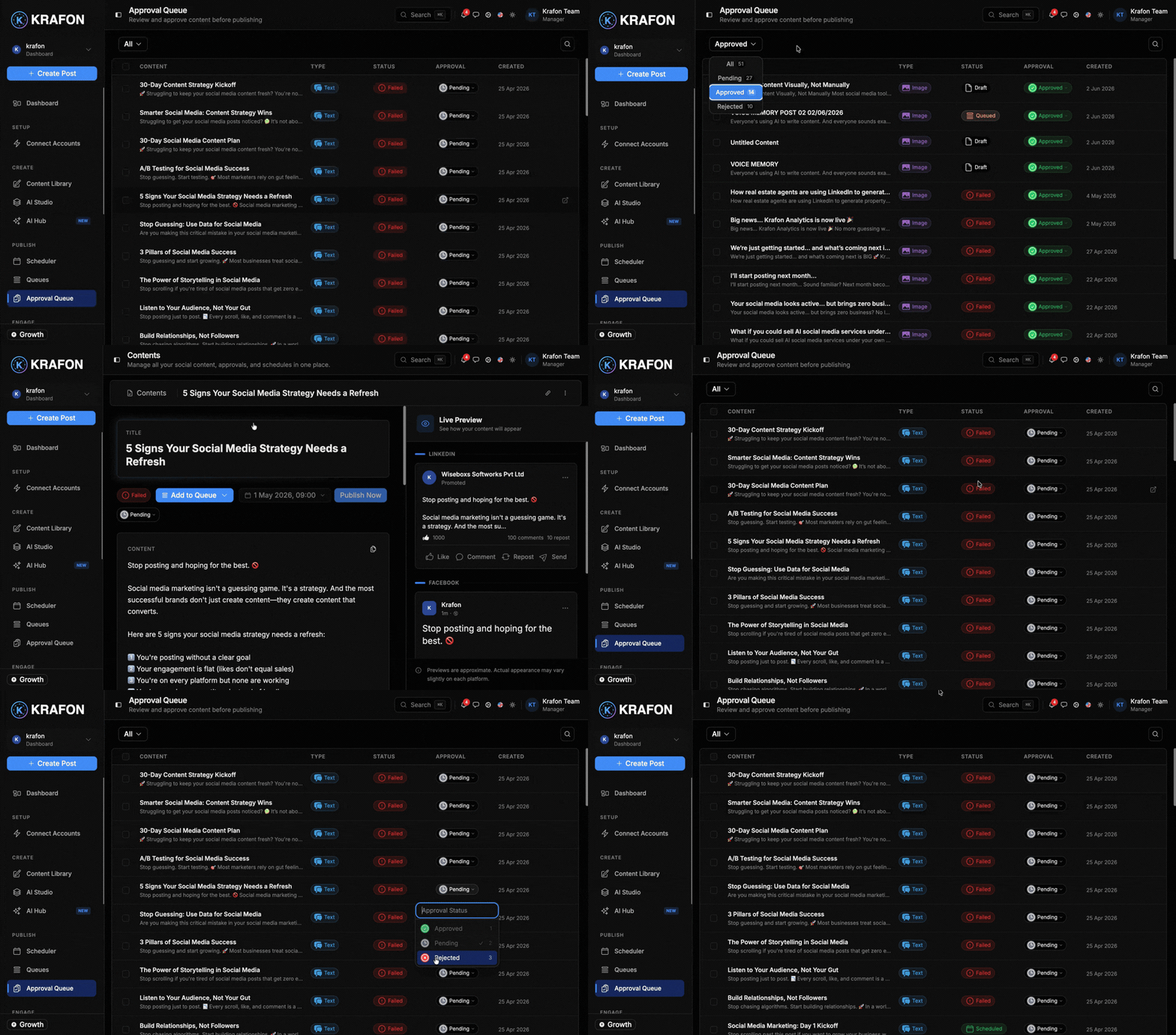
The Approval Queue is where designated team members review content before it goes live. Instead of posts publishing the moment they're created, they wait here for a Manager or Admin to approve, request revisions, or reject them. Open it at /<workspace>/library/approval.
This is how teams keep quality and brand standards high without slowing everyone down.
Why use this?
- Quality control. A second set of eyes catches issues before anything publishes.
- Clear sign-off. Approvals create an explicit, accountable yes before content goes live.
- Helpful feedback loops. Request revisions with notes so creators know exactly what to change.
- Flexible by workspace. Some workspaces auto-approve; others require sign-off — you choose.
Visibility requires Manager-level permission. Reviewers must be a Manager (or higher, such as Admin or Owner) to see and act on the queue. See Team and roles.
How it works
- A team member creates content. Depending on your workspace's auto-approval level, it either publishes automatically or lands in the Approval Queue.
- A Manager or Admin opens Approval at
/<workspace>/library/approvalto see pending approvals. - The reviewer opens a post to review its copy, media, target platform, and scheduled time.
- The reviewer chooses an action:
- Approve — the post proceeds to publishing or scheduling.
- Request revisions — sends it back for changes, with a note explaining what to fix.
- Reject — declines the post.
- The reviewer can add approval notes to explain decisions or give direction.
Actions
| Action | What it does |
|---|---|
| View pending approvals | See all content waiting for review. |
| Approve | Sign off so the post can publish or schedule. |
| Request revisions | Send the post back to the creator for changes. |
| Reject | Decline the post. |
| Add approval notes | Attach context or instructions to your decision. |
Auto-approval level
Each workspace has an auto-approval level setting that controls whether content needs sign-off:
- Auto-approve workspaces — content skips the queue and proceeds on its own.
- Sign-off required — content waits in the Approval Queue until a Manager or Admin approves it.
Set or change the auto-approval level in your workspace settings. For the full team setup, see the Team approval workflow guide.
Example workflow
- Your workspace requires sign-off, so a Team Member's new Instagram post lands in the Approval Queue.
- A Manager opens
/<workspace>/library/approval, reviews the post, and notices the CTA is missing. - The Manager clicks Request revisions and adds a note: "Add the 'Book a demo' CTA and tighten the hook."
- The Team Member updates the post; it returns to the queue.
- The Manager reviews again and clicks Approve, and the post moves on to be scheduled.
Tips and notes
Always add a note when requesting revisions. Specific feedback ("shorten to 2 lines, add the discount code") turns one round of edits into a quick fix.
If your team is small and trusted, consider raising the auto-approval level so routine posts don't wait — reserve review for higher-stakes content.
Posts stuck awaiting approval won't publish. Assign clear reviewers so the queue doesn't become a bottleneck around deadlines.
Common issues
Problem: A team member can't see the Approval Queue. Solution: Reviewing requires Manager-level permission or higher. Check the member's role in Team and roles.
Problem: Content publishes without review. Solution: Your workspace's auto-approval level is likely set to auto-approve. Change it to require sign-off — see the Team approval workflow guide.
Problem: Approved posts didn't publish. Solution: Approval clears a post for publishing or scheduling, but it still needs a valid time and an active platform connection. Confirm both in the Scheduler and Settings → Integrations.
FAQ
Who can approve content? Members with Manager-level permission or higher (Manager, Admin, Owner). See Team and roles.
What happens after I request revisions? The post goes back to the creator with your note. Once updated, it returns to the queue for another review.
Can I turn approvals off entirely? Yes. Set your workspace's auto-approval level so content publishes without sign-off. Details are in the Team approval workflow guide.