Media Library
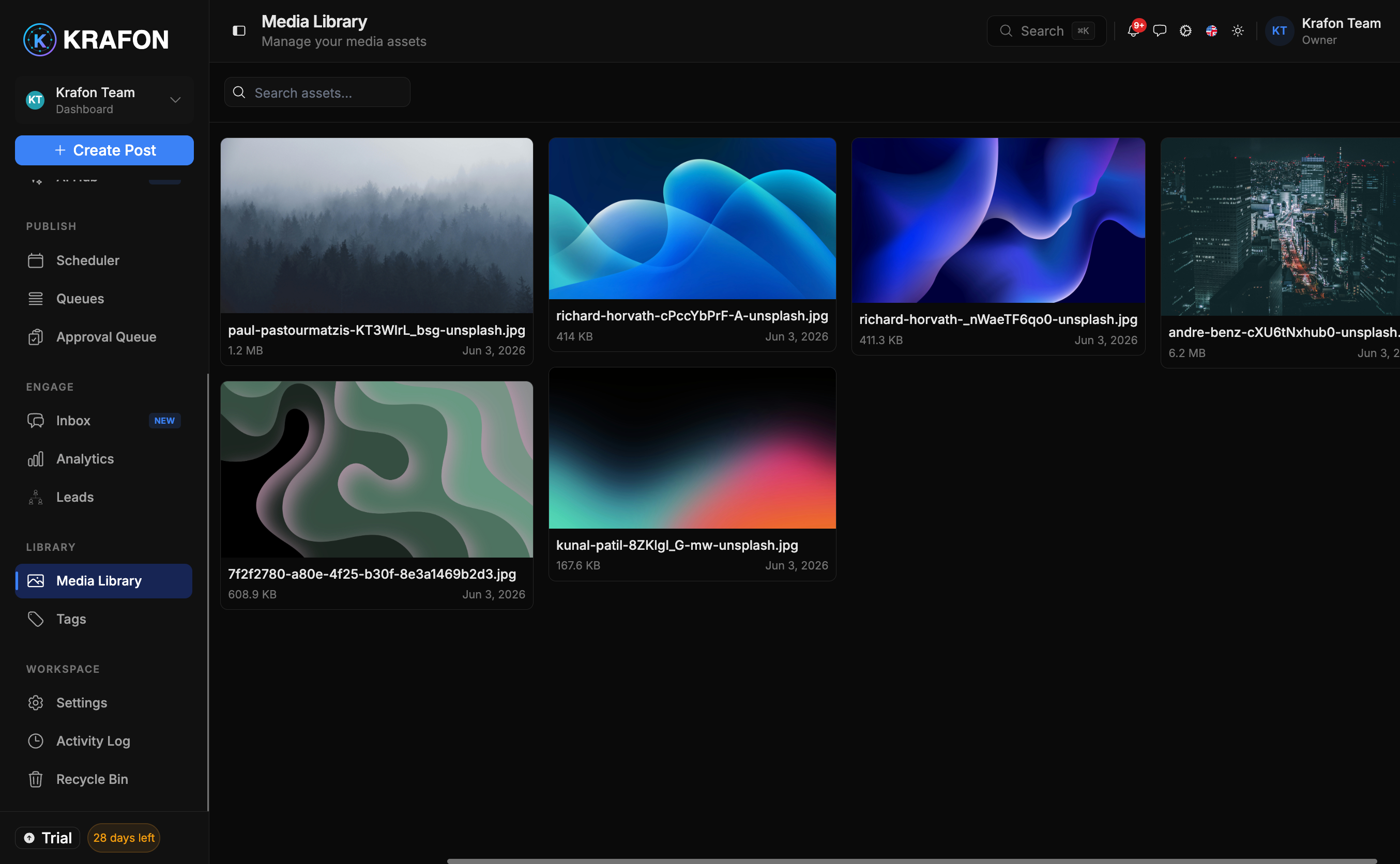
The Media Library at /<workspace>/media is your central store for brand assets — every image and video you use in your content. Upload once, organize it, and reuse it across all your posts.
Why use this?
- Keep all your visuals in one organized place instead of scattered across devices.
- Reuse approved brand assets in any post without re-uploading.
- Find the right file fast with folders, tags, search, and filters.
How it works
- Open the Media Library. Select Media in the sidebar.
- Upload assets. Add images and videos via Upload.
- Organize them. Sort assets into folders and apply Tags so they're easy to group.
- Search and filter. Use search and filters to locate a specific asset quickly.
- Preview. Click any asset to preview the full image or play the video.
- Bulk download. Select multiple assets and download them together.
- Delete or restore. Remove assets you no longer need, and restore them if you change your mind.
Supported formats
- Images: JPG, PNG, GIF, WebP
- Video: MP4, MOV, WebM
Example workflow
Before a campaign, you upload a batch of product photos and two promo videos. You create a "Summer Launch" folder, tag everything with the campaign tag, and preview the clips to pick the best one. Later, while building a post in Content Studio, you reuse those exact assets — no re-uploading, no digging through your downloads folder.
Use Tags on top of folders. Folders group by project; tags let you pull assets across folders (for example, every "logo" or "before/after" image).
Assets stored here are available to reuse directly in Content Studio when you build a post.
Common issues
Problem: My upload was rejected. Solution: Check the format. Images must be JPG, PNG, GIF, or WebP; video must be MP4, MOV, or WebM. Convert the file if it's a different type.
Problem: I deleted an asset I still needed. Solution: Restore it — deleted assets can be brought back from the Media Library.
Problem: I can't find an asset I uploaded. Solution: A folder or filter view may be hiding it. Clear filters and search by name, or check other folders.
FAQ
Can I organize with both folders and tags? Yes. Folders give you structure; Tags let you cut across folders for flexible grouping.
Can the whole team use these assets? Yes — the Media Library is shared within your workspace, so reused brand assets stay consistent across everyone's posts.