Content Studio
Content Studio at /<workspace>/library/studio is the rich editor for a single post. It's where you write the caption, design the visuals, tailor the post for each platform, and preview exactly how it will look before it goes out.
Why use this?
- Edit copy and media in one place with a true WYSIWYG experience.
- Tailor the same post per platform — including a LinkedIn Carousel builder — without juggling separate tools.
- See a live preview for each connected platform so there are no surprises after publishing.
How it works
- Open a post in Content Studio. Create a new post or click an existing one in your Content Library.
- Write the caption. Use the WYSIWYG caption editor to format your copy as it will appear.
- Edit your media. Add images or video and refine them with the AI-powered image tools in the media editor.
- Tailor per platform. Use the platform-specific editors to adjust the post for each channel, including the LinkedIn Carousel builder for multi-slide posts.
- Generate a caption with AI. Click Generate caption for one-click AI copy that follows your brand voice from Brand Brain.
- Add hashtags and a CTA. Apply hashtag suggestions and place a CTA where you want it.
- Preview everywhere. Check the live preview for each connected platform.
- Save or schedule. Save as draft to keep working, or send the post to scheduling.
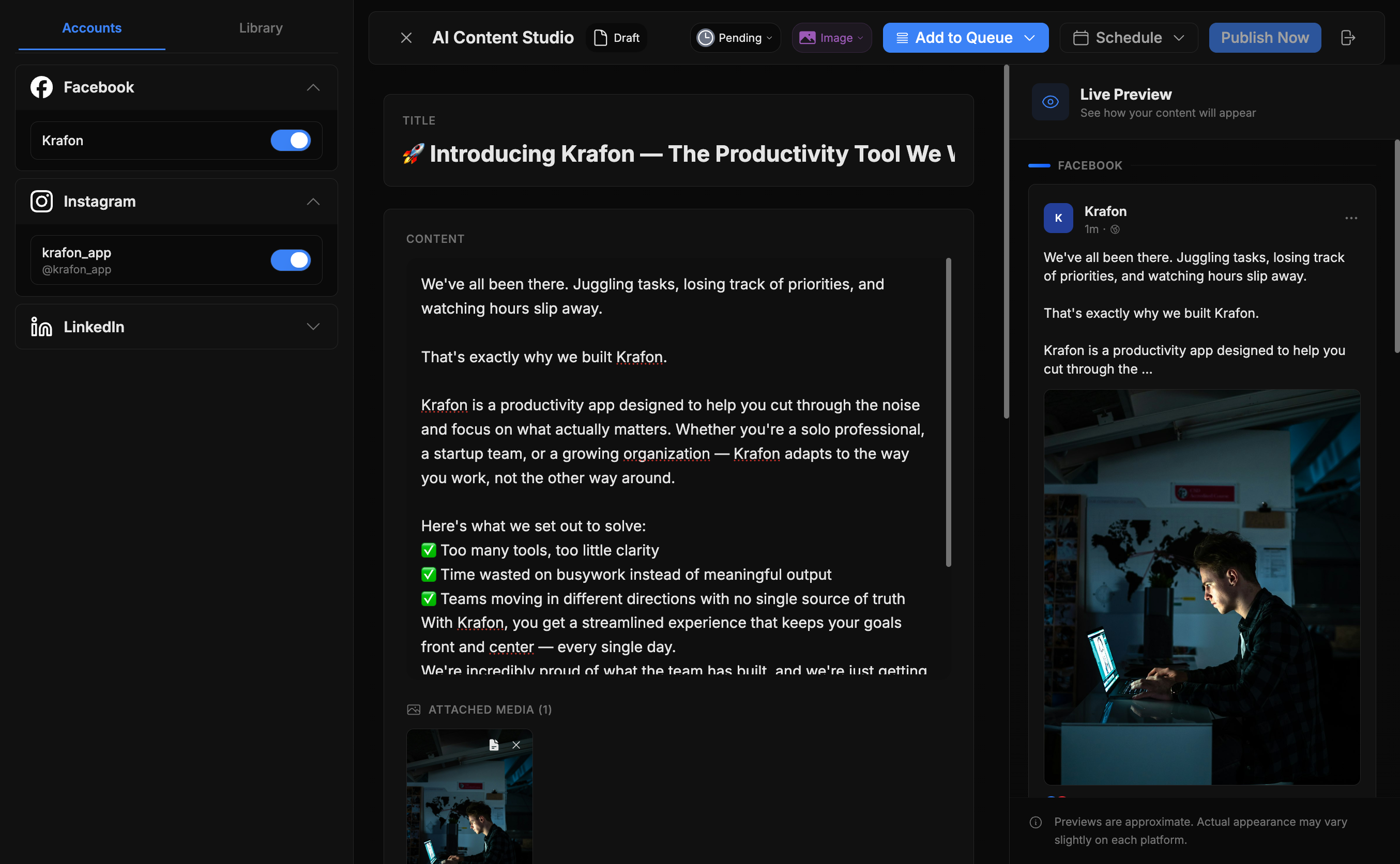
Example workflow
You're announcing a product update. You drop in a hero image, run an AI image tool to clean up the background, and click Generate caption — Krafon writes copy in your usual tone thanks to your Brand Brain. You switch to the LinkedIn Carousel builder to turn the announcement into a five-slide carousel, add a CTA on the final slide, check the live previews for Instagram and LinkedIn, then send it to scheduling.
Need many posts at once instead of one at a time? Use AI Studio to generate a whole month of drafts, then refine each one here in Content Studio.
The quality of AI captions depends on how well your Brand Brain is trained. The more it knows your voice and audience, the better the suggestions.
Common issues
Problem: The AI caption doesn't sound like my brand. Solution: Train or update your Brand Brain with more examples of your voice, then regenerate.
Problem: A platform preview looks cut off or formatted oddly. Solution: Each platform has its own display rules. Use the platform-specific editor to adjust that channel's version, then recheck its live preview.
Problem: My LinkedIn carousel slides are out of order. Solution: In the LinkedIn Carousel builder, drag slides to reorder them before saving or scheduling.
FAQ
Can I create different captions for each platform? Yes. The platform-specific editors let you customize copy and media per channel from the same post.
Where does a finished post go? Saving as a draft keeps it in your Content Library; sending it to scheduling moves it toward publishing.