Connect LinkedIn
Overview
Connecting LinkedIn lets you publish to a personal profile or an organization (company) Page, including multi-slide carousels built in Content Studio. You can also pull post metrics and comments into Krafon. LinkedIn connects through LinkedIn's official API.
Before you start
To connect LinkedIn, you need:
- A LinkedIn account to authorize the connection.
- For a company Page: organization admin access to that Page. Without it, the Page won't be available to connect.
- To decide whether you're connecting your personal profile, an organization Page, or both.
How to connect
- Go to Connect Accounts (
/<workspace>/accounts). - Click Connect LinkedIn.
- You're redirected to LinkedIn. Sign in and grant the requested permissions.
- Choose whether to connect your personal profile and/or an organization Page you administer.
- Krafon stores the connection.
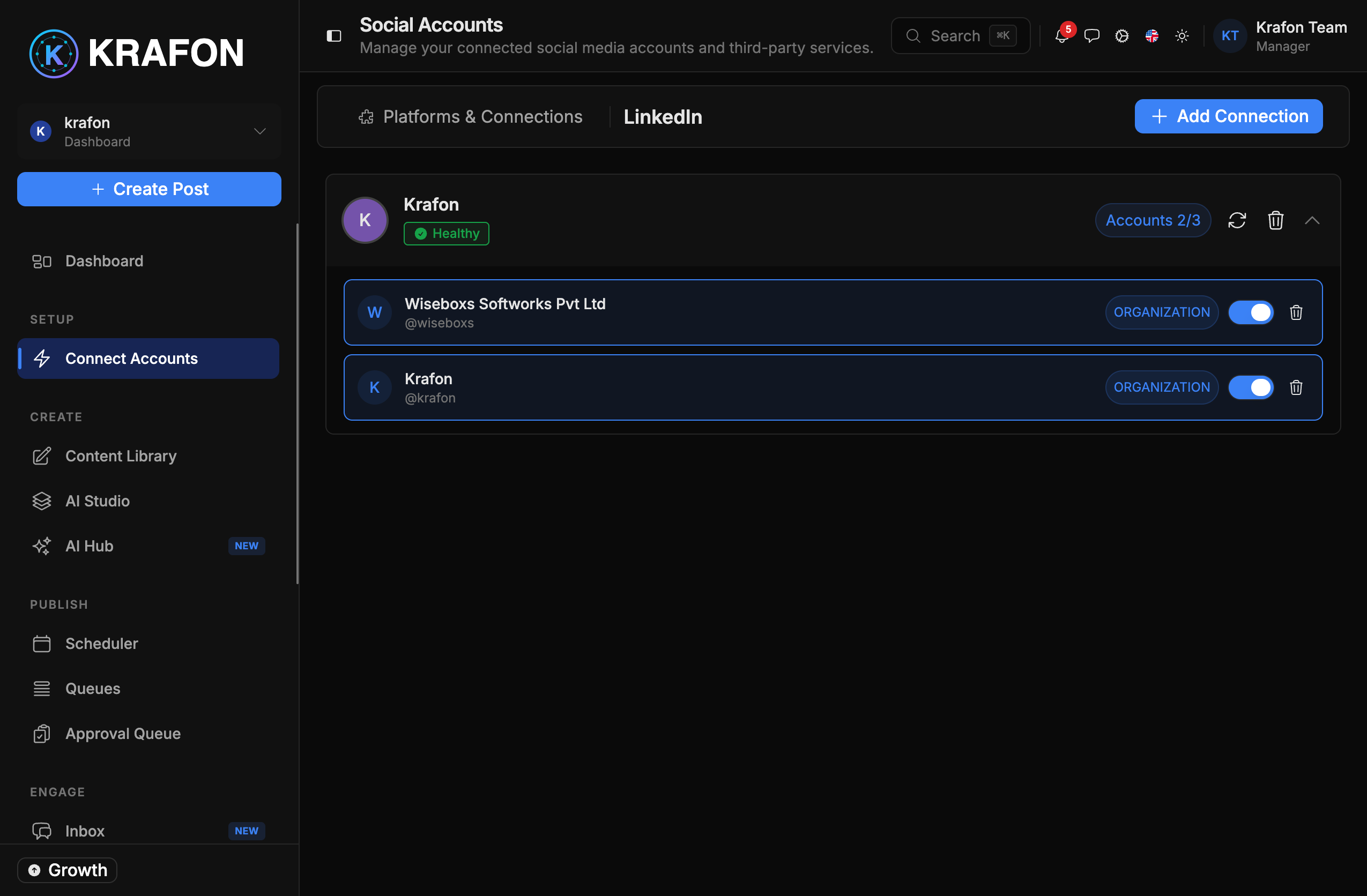
- You return to a confirmation, and the connection appears with a health status.
What you can do
- Publish posts, including multi-slide carousels designed in Content Studio.
- Pull post metrics such as impressions, reactions, and engagement into Krafon analytics.
- Pull comments on your posts for review.
Limitations
- Company Pages require organization admin access on LinkedIn.
- Available post types and metrics follow what LinkedIn's API exposes.
Common issues
Problem: The connection shows "expired / needs reconnect." Solution: LinkedIn access tokens expire periodically. Open Connect Accounts and reconnect to refresh access. See Connection Troubleshooting.
Problem: Your company Page isn't available to connect. Solution: You need organization admin access to that Page on LinkedIn. Ask an existing admin to grant you the role, then re-run Connect LinkedIn.
Problem: Permissions weren't granted. Solution: Re-run the connect flow and accept all requested scopes on the LinkedIn consent screen.