Connect Instagram
Overview
Connecting Instagram lets you publish photos, carousels, and Reels on a schedule, pull post and account insights into Krafon's analytics, and sync incoming comments to your unified inbox. Instagram connects through Meta, so the setup runs through a Meta sign-in.
Before you start
To connect Instagram, you need:
- An Instagram professional account — either Business or Creator. Personal accounts are not supported.
- That account linked to a Facebook Page you manage. Instagram's API requires the Page link to authorize publishing and insights.
- Admin access to the Facebook Page during the connect flow.
In the Instagram app, go to Settings → Account type and tools → Switch to professional account, then link it to your Facebook Page. This is free.
How to connect
- Go to Connect Accounts (
/<workspace>/accounts). - Click Connect Instagram.
- You're redirected to Meta. Sign in to the Facebook account that manages the linked Page.
- Grant the requested permissions and select the Page (and its linked Instagram account) you want to connect.
- Krafon stores the connection.
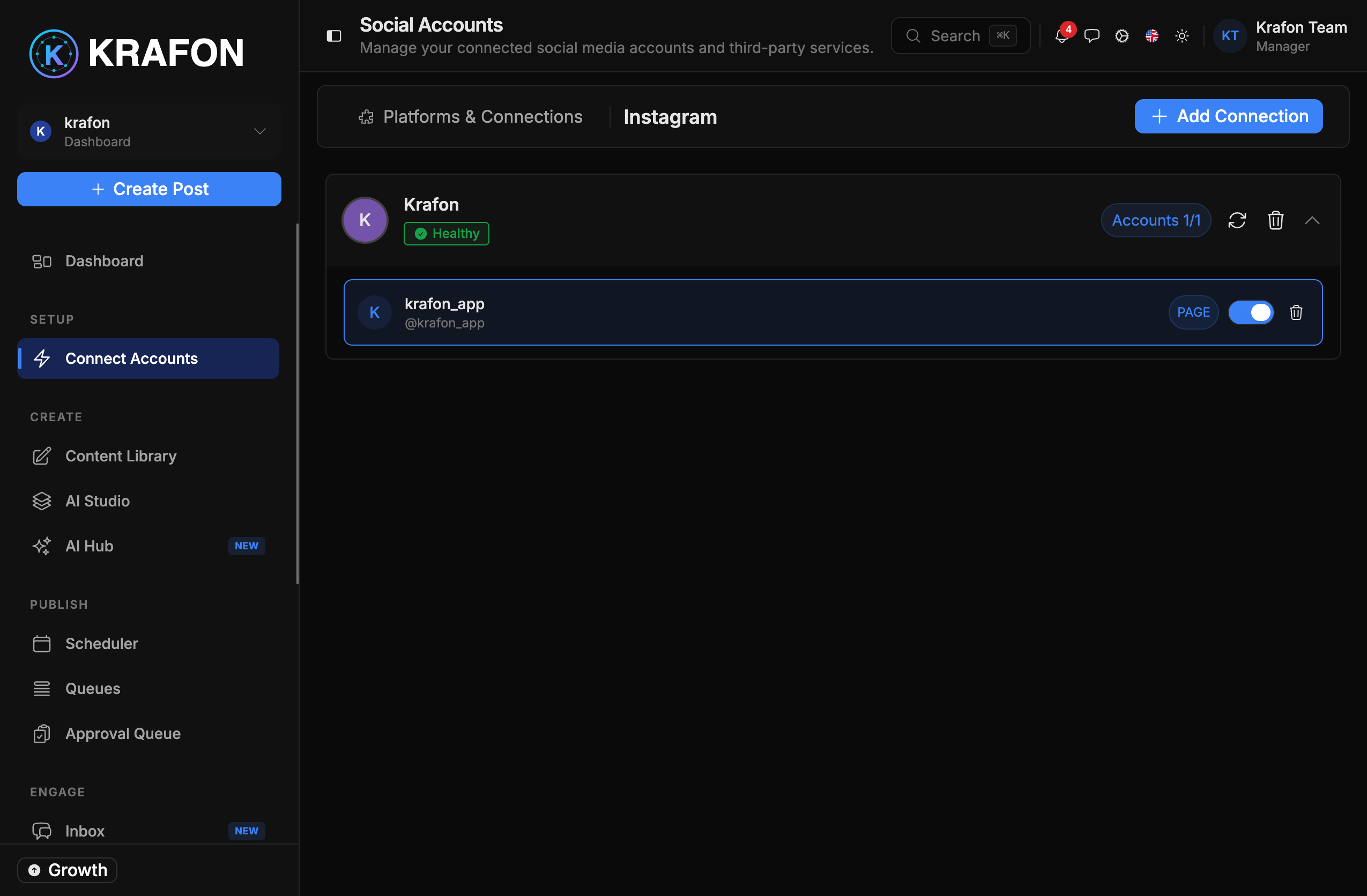
- You return to a confirmation, and your Instagram account appears with a health status.
What you can do
- Publish single images, multi-image carousels, and Reels — all with your approval before they go live.
- Pull insights such as reach, impressions, and engagement into Krafon analytics.
- Sync comments on your posts into the Inbox so you can reply from Krafon.
Limitations
- Personal Instagram accounts can't be connected — you must use a Business or Creator account linked to a Facebook Page.
- Some content types and metrics are governed by Meta's API and may differ from what you see in the native app.
Common issues
Problem: "Account not eligible" during connect. Solution: Your Instagram account is either still personal or not linked to a Facebook Page. Switch it to a Business or Creator account and link it to a Page you manage, then run the connect flow again.
Problem: Your Instagram account doesn't appear in the list. Solution: Make sure you signed in with the Facebook account that manages the Page, and that you granted all requested permissions. Re-run Connect Instagram and grant every scope.
Problem: The account shows "expired / needs reconnect." Solution: Open Connect Accounts and reconnect. See Connection Troubleshooting.