Connect YouTube
Overview
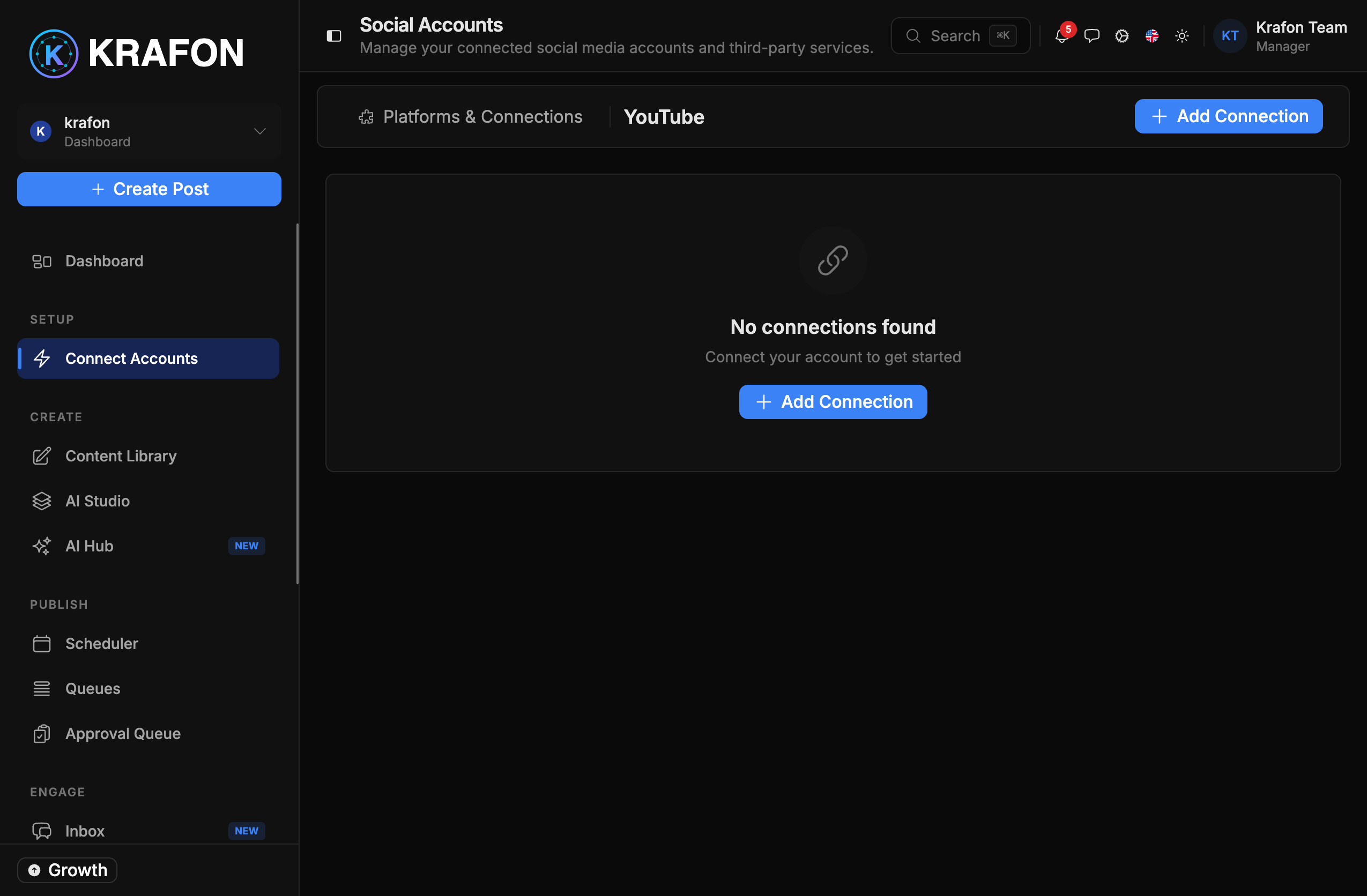
Connecting YouTube lets you upload videos on a schedule and pull channel and video analytics into Krafon. YouTube connects through Google sign-in (OAuth), so you'll authorize with the Google account that owns your channel.
Before you start
To connect YouTube, you need:
- A Google account with an existing YouTube channel. Krafon can't create a channel for you.
- The correct Google account ready to sign in — if you manage several, make sure you pick the one that owns the channel.
How to connect
- Go to Connect Accounts (
/<workspace>/accounts). - Click Connect YouTube.
- You're redirected to Google. Sign in with the account that owns your channel.
- Grant the requested permissions for uploading and reading analytics.
- Krafon stores the connection.
- You return to a confirmation, and your channel appears with a health status.
What you can do
- Upload videos to your channel, with your approval before they publish.
- Pull channel and video analytics such as views and engagement into Krafon.
Limitations
- You must have an existing YouTube channel on the Google account you connect.
- Large uploads take time — processing and availability on YouTube can lag after the upload finishes.
- Available metrics follow what the YouTube API exposes.
Common issues
Problem: No channel found after sign-in. Solution: You likely signed in with a Google account that has no YouTube channel. Create a channel on that account, or reconnect using the Google account that owns your channel.
Problem: You connected the wrong Google account. Solution: Disconnect the account in Connect Accounts, then run Connect YouTube again and choose the correct Google account during sign-in.
Problem: The channel shows "expired / needs reconnect." Solution: Open Connect Accounts and reconnect. See Connection Troubleshooting.